Move or reschedule a booking
Drag a booking to a new time or to another staff member.
You can reschedule by dragging, with no forms to fill in.
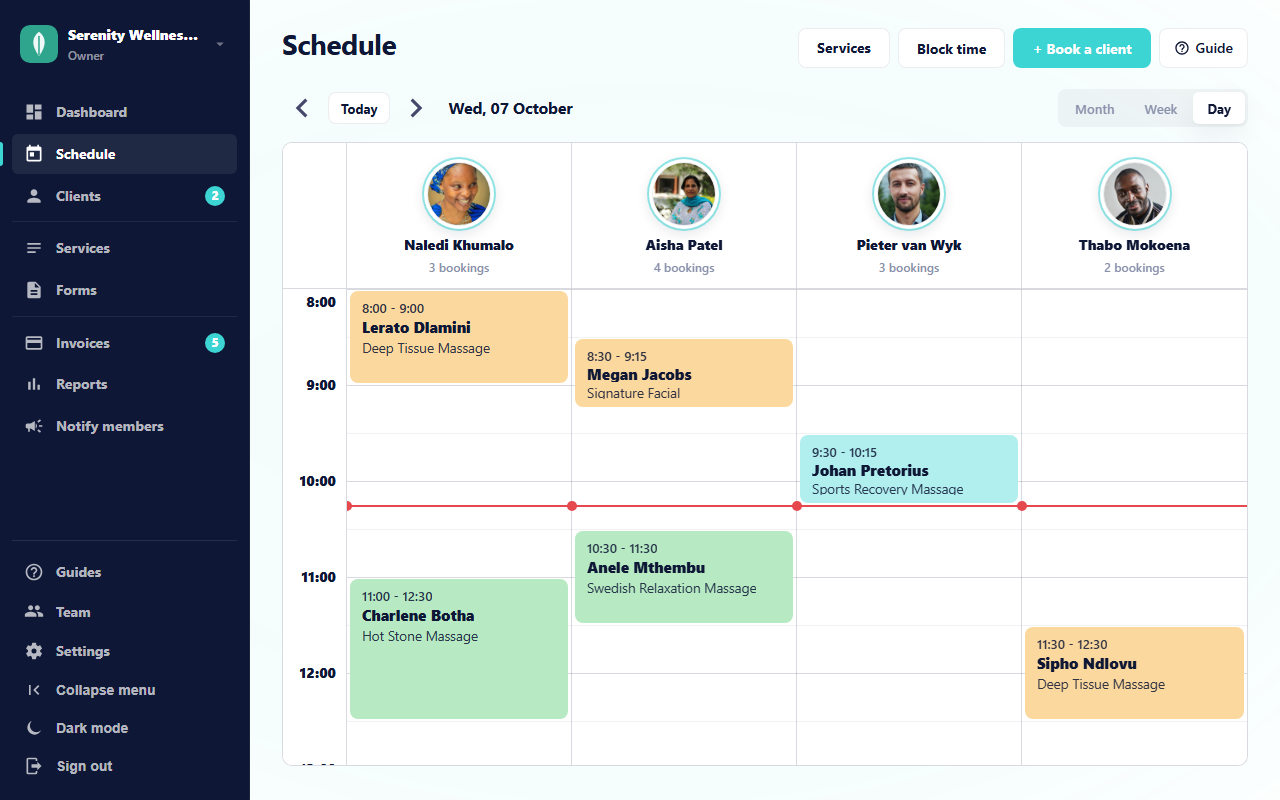
Steps
- Open the Schedule in Day view (or Week or Month).
- Press and drag the booking block up or down to a new time. In the Day view it snaps to 15 minutes.
- Let go. The booking is saved straight away.
- To give it to a different person, drag it sideways into their column in the Day view.
What moves
- Dragging up or down moves the whole session, so every client in it moves too.
- Dragging sideways changes that booking's staff member. For an open slot it swaps the session's staff.
- You can also change who a booking is with: open the session and use the staff list next to the client.
Related guides
Day, week and month viewsSwitch between the three calendar views and find your way around.Choose who does a serviceTick the staff who can do a service so clients can choose them or take anyone free.The client's manage linkHow clients cancel or change their own booking, and how to set the cut-off.Block time off and set special daysClose lunch, leave or a public holiday, or set different hours for one date.