The client's manage link
How clients cancel or change their own booking, and how to set the cut-off.
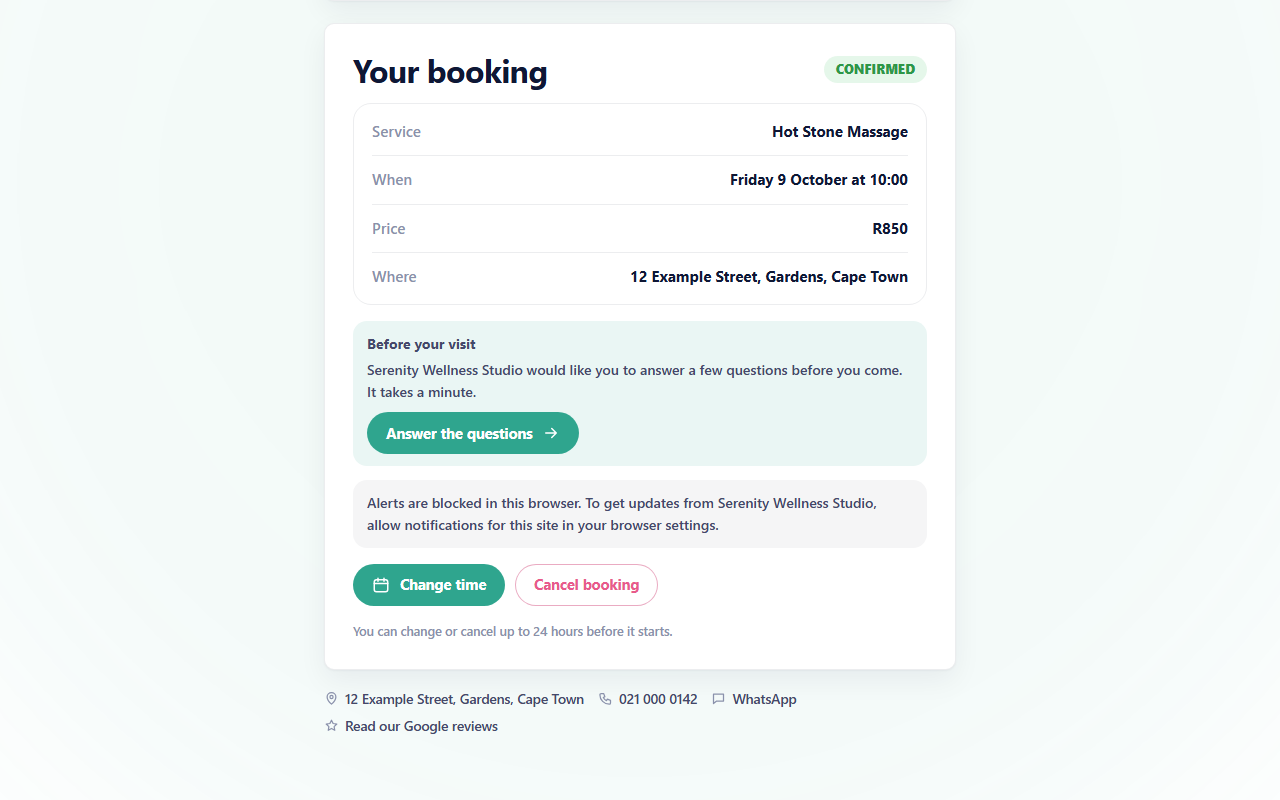
Every client who books with an email address gets a private link in their confirmation email. They need no password.
Steps
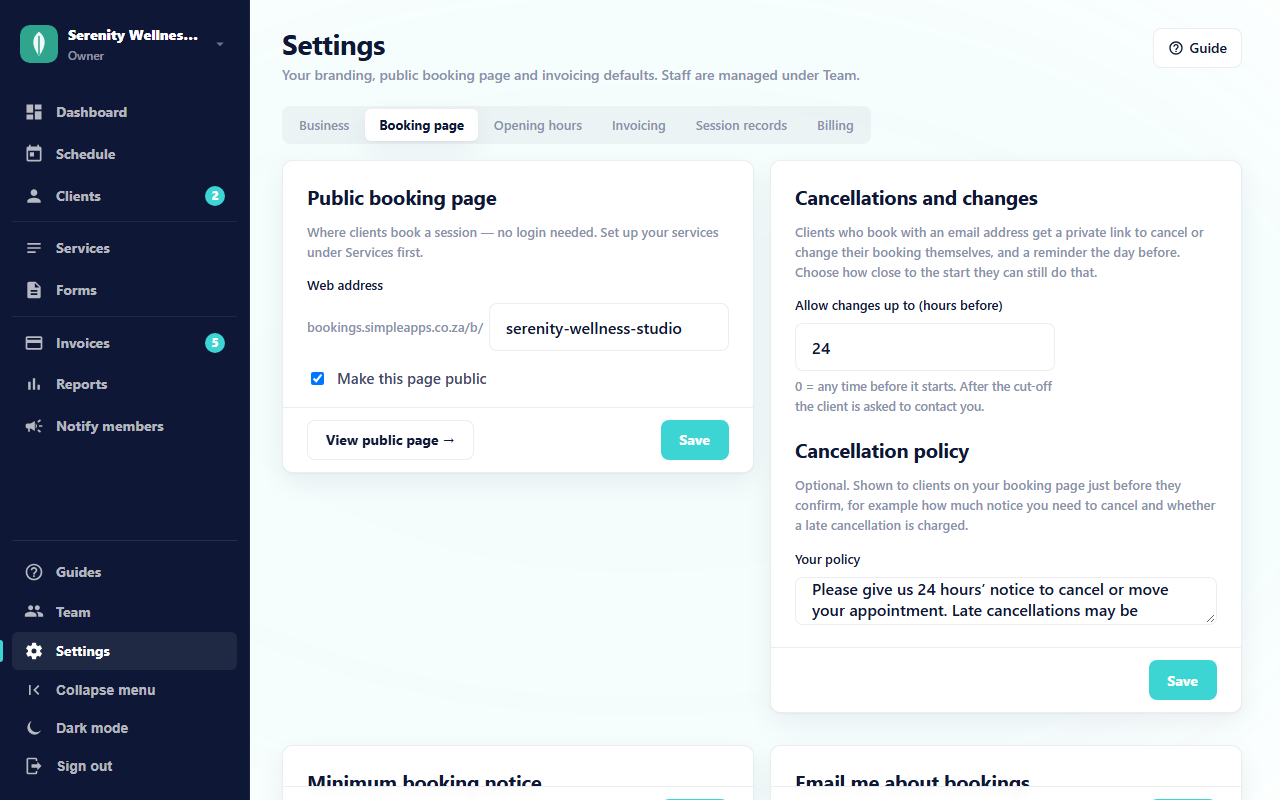
- Go to Settings and open the Booking page tab.
- Under Cancellations and changes, set Allow changes up to (hours before). 0 means any time before it starts.
- Optionally type a Your policy, such as how much notice you need. Clients see it just before they confirm.
- Tap Save.
What clients can do
- Cancel their booking or change it to another free time.
- See the "Before your visit" card if you asked check-in questions. This opens their check-in link, where they answer your questions before the visit.
- After the cut-off, they are asked to contact you instead.
Good to know
- Clients also get a reminder the day before.
- The link stops working 60 days after the appointment has ended.
- The check-in page is open from 14 days before the visit and closes once you complete the visit record.
- You can switch on "Email me about bookings" to be told when a client books, joins a waitlist, cancels or moves a booking.
Related guides
Stop last-minute bookings with minimum noticeChoose how far ahead clients must book, from 1 hour to 1 week.How bookings work, from request to visitThe journey of one booking, what clients see and what you see.Move or reschedule a bookingDrag a booking to a new time or to another staff member.Mark a visit: attended, no-show or cancelledRecord what happened after the appointment, and cancel bookings or sessions.