Block time off and set special days
Close lunch, leave or a public holiday, or set different hours for one date.
Block time closes it to new online bookings. Special days change the opening hours for one date.
Steps
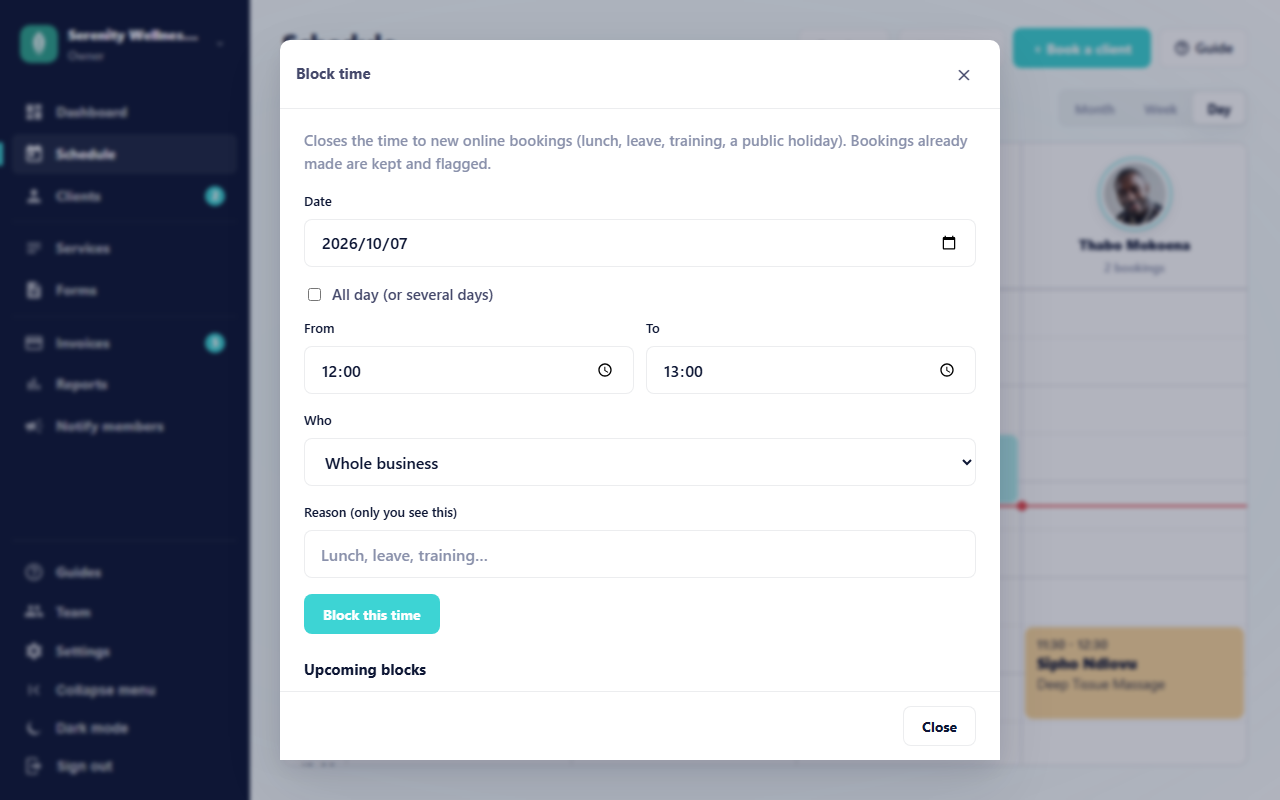
- Go to Schedule and tap Block time.
- Choose the Date. Tick "All day (or several days)" to block a whole day or more, then set Until (inclusive).
- For part of a day, set From and To times.
- If you have staff, choose Who: the whole business or one person.
- Add a Reason (only you see this), then tap Block this time.
- To undo it, find it under Upcoming blocks and tap Remove.
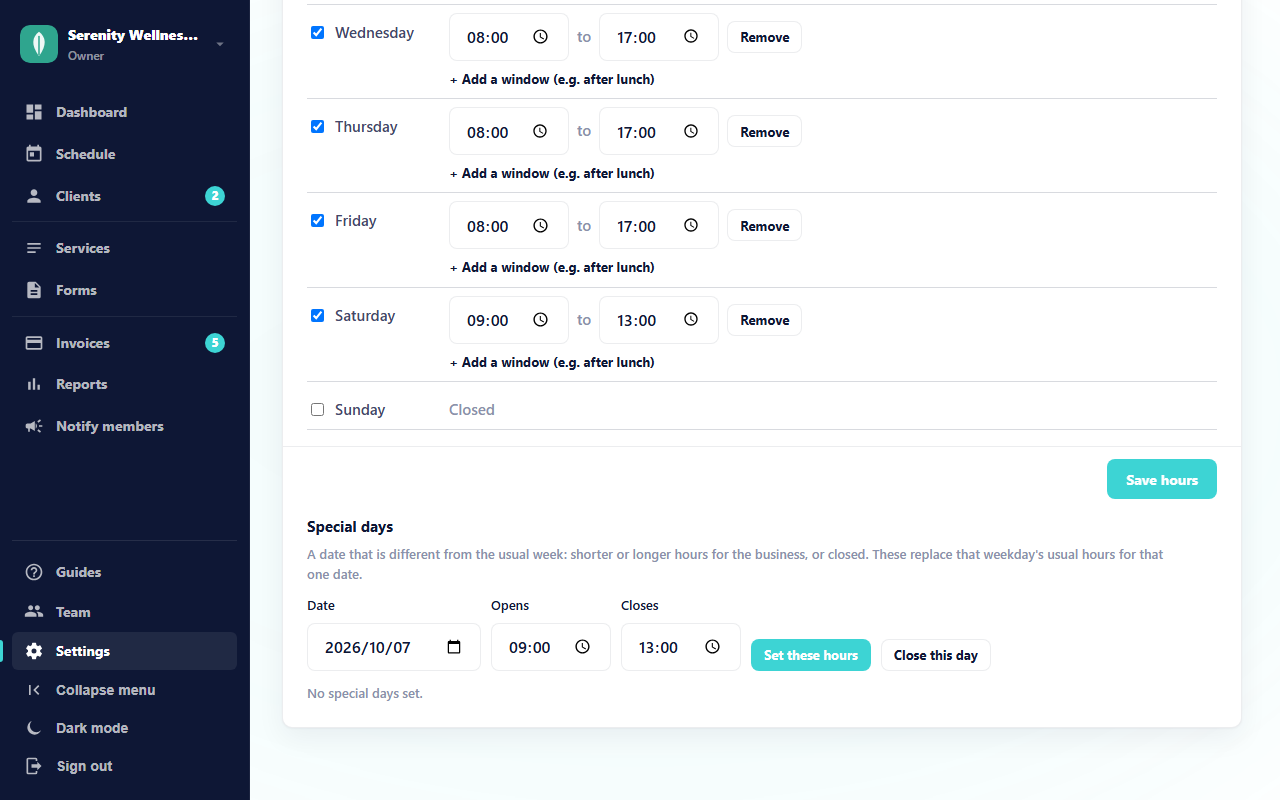
Special days (different hours for one date)
Go to Settings, Opening hours tab, and find Special days. Choose the Date and the Opens and Closes times, then tap Set these hours. To close the date entirely, tap Close this day. To go back to the usual hours, tap Remove next to the date.
What happens to bookings already there
Bookings that were made earlier are kept and flagged. The session says it falls inside a blocked period. The public page no longer offers it. Open the booking to move or cancel it.