Day, week and month views
Switch between the three calendar views and find your way around.
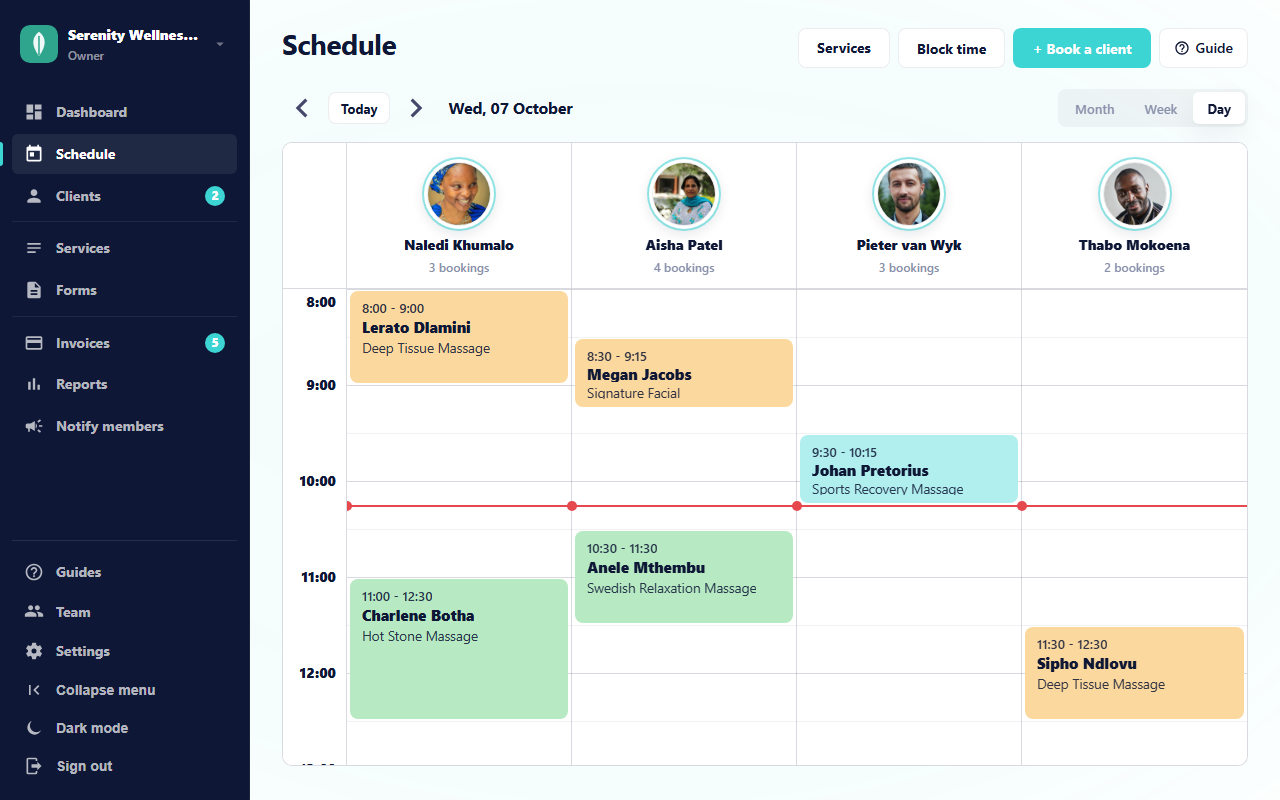
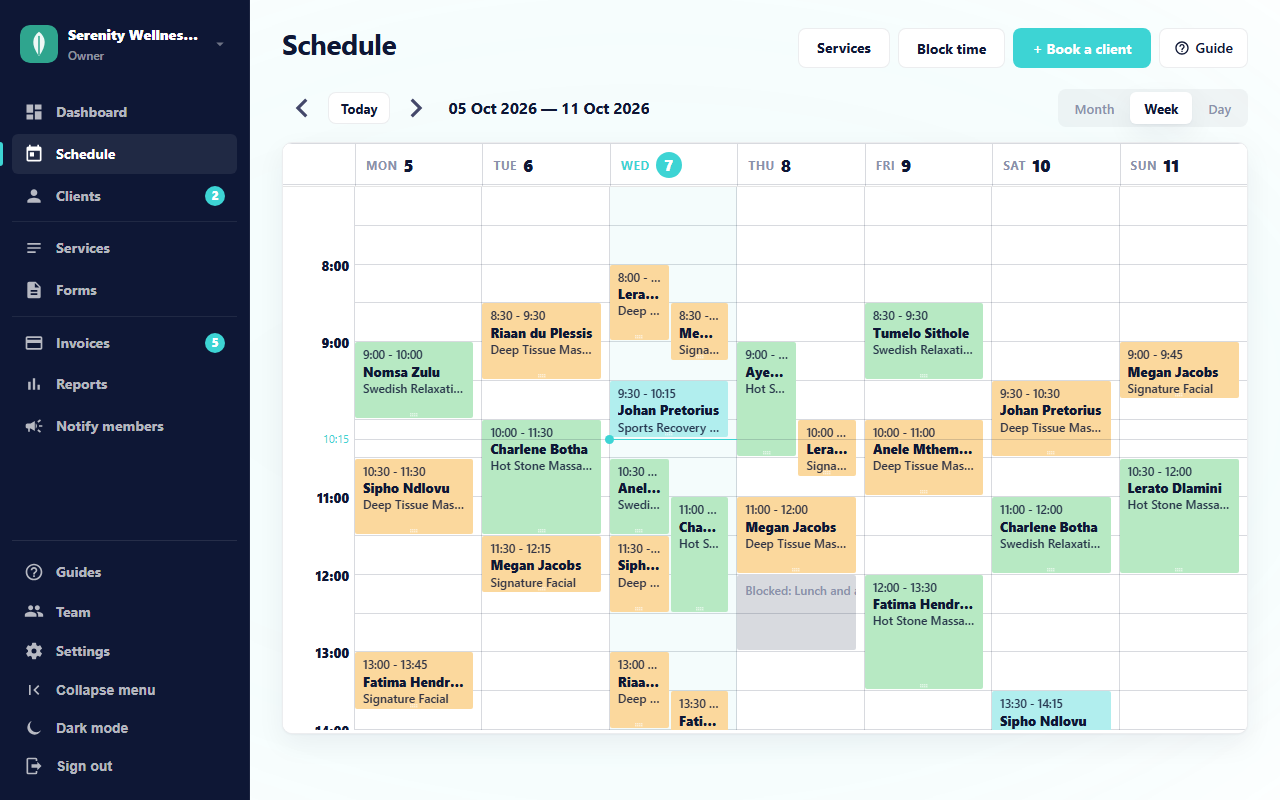
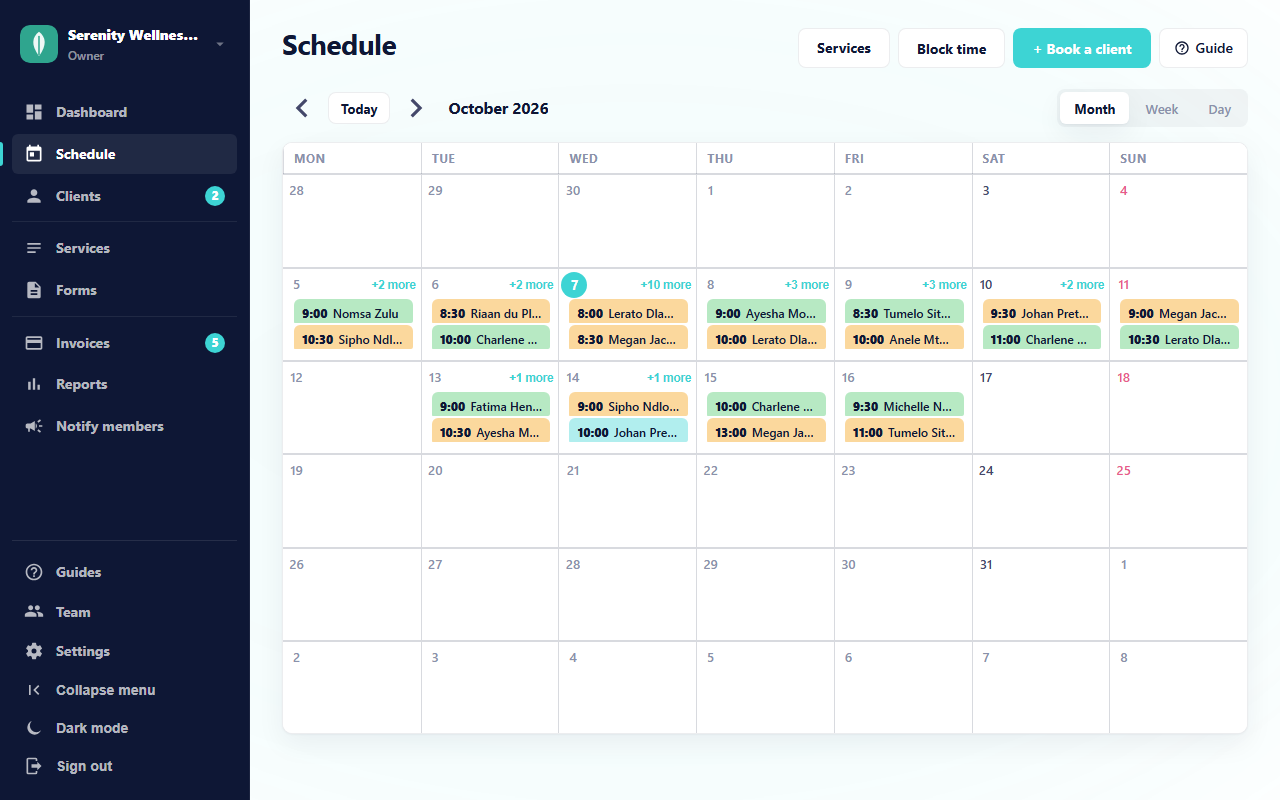
The Schedule opens on the Day view. The buttons at the top of the calendar switch views.
Steps
- Go to Schedule.
- Use the Calendar view switch to choose Month, Week or Day.
- Tap the arrows (Previous and Next) to move on, or tap Today to come back.
- Tap any booking to open it and see who is booked.
Day view
If you have staff, you get a column for each person, with their photo at the top. Every booking is a coloured block in that person's column. A block with no staff chosen goes in an Unassigned column. If you work alone there is one simple column.
Week and month views
Each booking is a coloured block with the time and the client's name. Blocked time shows in grey. A day with many bookings shows "+ more" you can tap. On a phone, the Week view becomes a day-by-day list.
Colours and labels
- Each service has its own colour.
- A session with several clients shows the first name and "+ more".
- Cancelled sessions are faded and labelled cancelled.
- A session that has people waiting shows "+N waiting".
- A session with room for more shows how full it is, for example 2/4.
An empty day
The Day view says "Nothing booked this day" and offers Jump to next booking, which looks ahead 90 days.
Related guides
Book a client yourselfAdd a booking on a client's behalf, for a phone call, walk-in or message.Move or reschedule a bookingDrag a booking to a new time or to another staff member.Block time off and set special daysClose lunch, leave or a public holiday, or set different hours for one date.Mark a visit: attended, no-show or cancelledRecord what happened after the appointment, and cancel bookings or sessions.