Choose who does a service
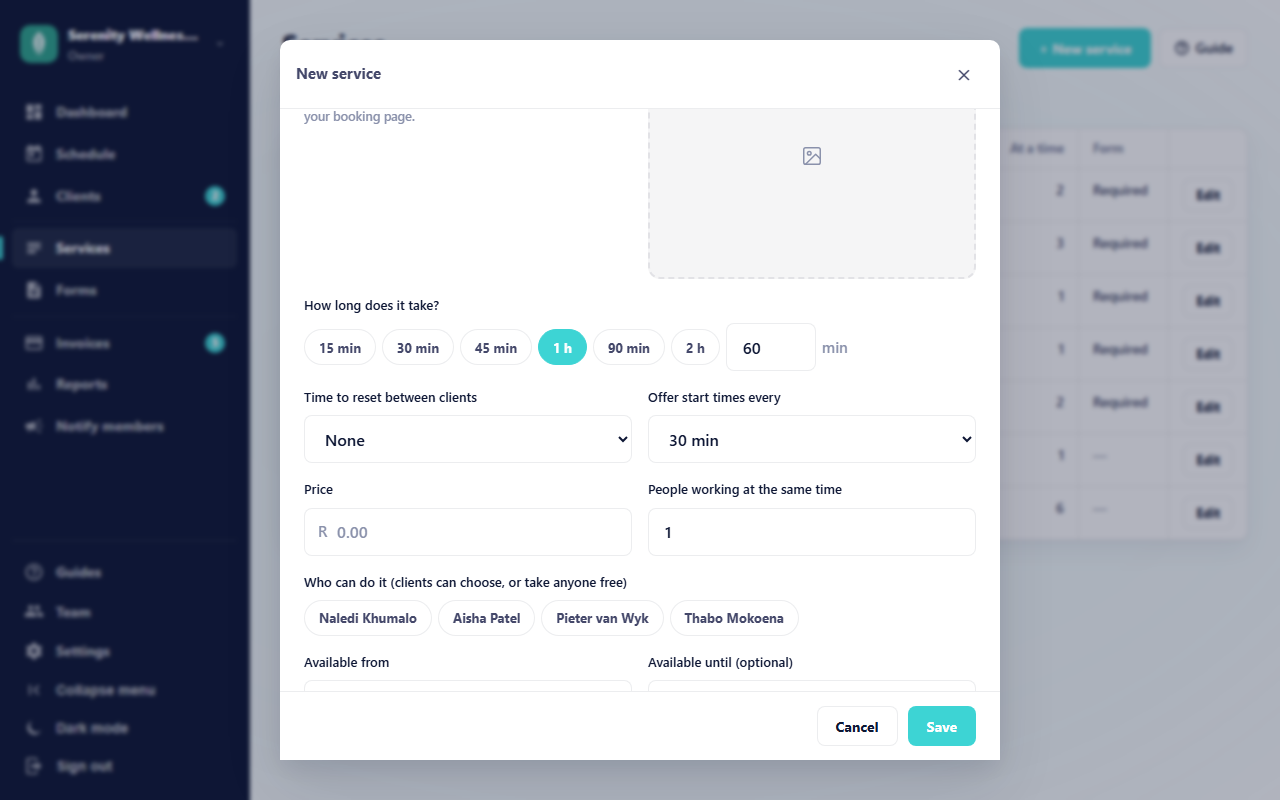
Tick the staff who can do a service so clients can choose them or take anyone free.
The staff picker only appears once you have added staff under Team. If you work alone, you will not see it.
Steps
- Go to Team and tap + Add staff member for each person who takes appointments.
- Go to Services and tap Edit on the service.
- Find "Who can do it (clients can choose, or take anyone free)". For a fixed-times service this says Staff.
- Tap each person's name so it is highlighted.
- Tap Save.
What this does
- Each ticked person can take one client at a time for this service.
- Clients can choose a person or take anyone who is free.
- A staff member is never double-booked, even across different services.
- The booking appears in that person's column on the day view of the Schedule.
Capacity changes
Once staff are ticked on a By appointment service, the "People working at the same time" box disappears. The number of ticked people is how many can be served at once.
Related guides
Capacity, couples and party sizeHow many people fit at once, and how bookings for two or more are counted.Day, week and month viewsSwitch between the three calendar views and find your way around.Set your opening hoursTell the app when you work, so clients can book the free time inside.Create, edit and stop offering a serviceAdd something clients can book, change it later, or take it off your page.