Create, edit and stop offering a service
Add something clients can book, change it later, or take it off your page.
Nothing can be booked until at least one service exists. Services is where you set what clients can book, how long it takes and what it costs.
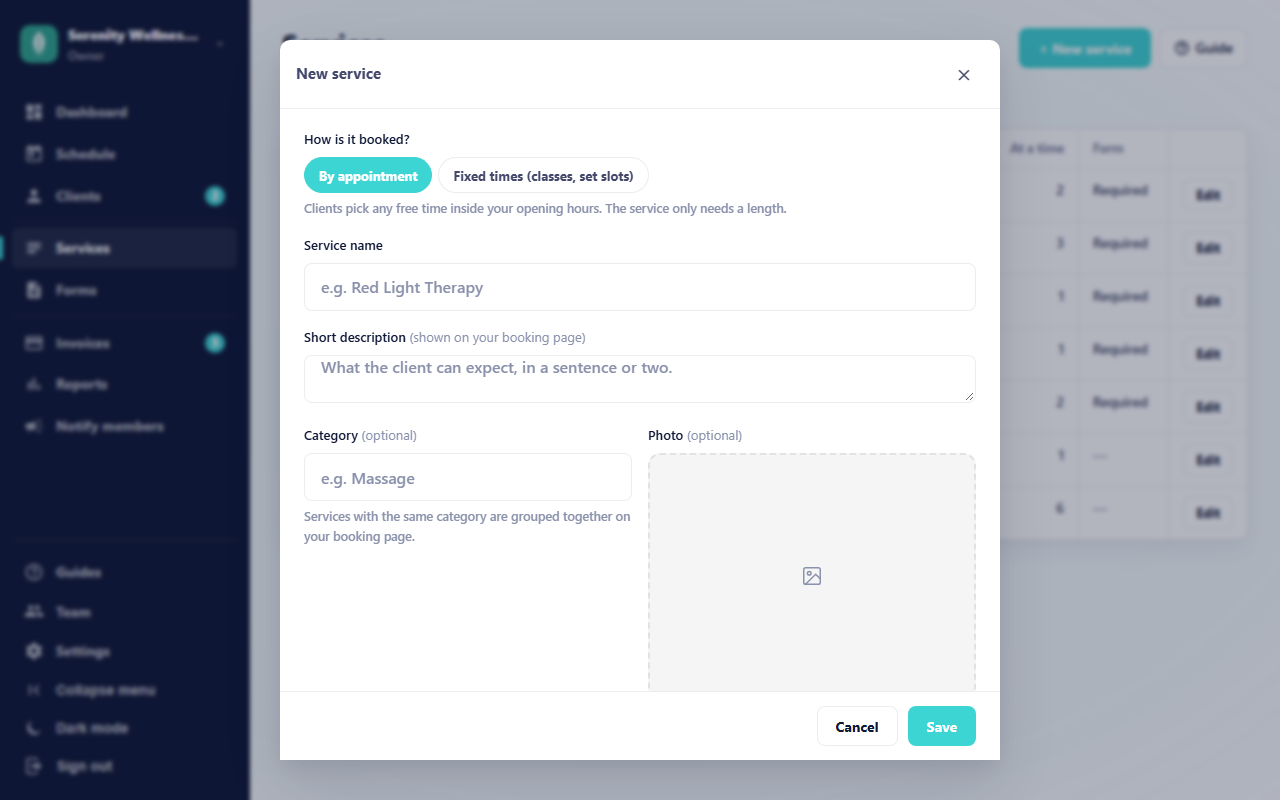
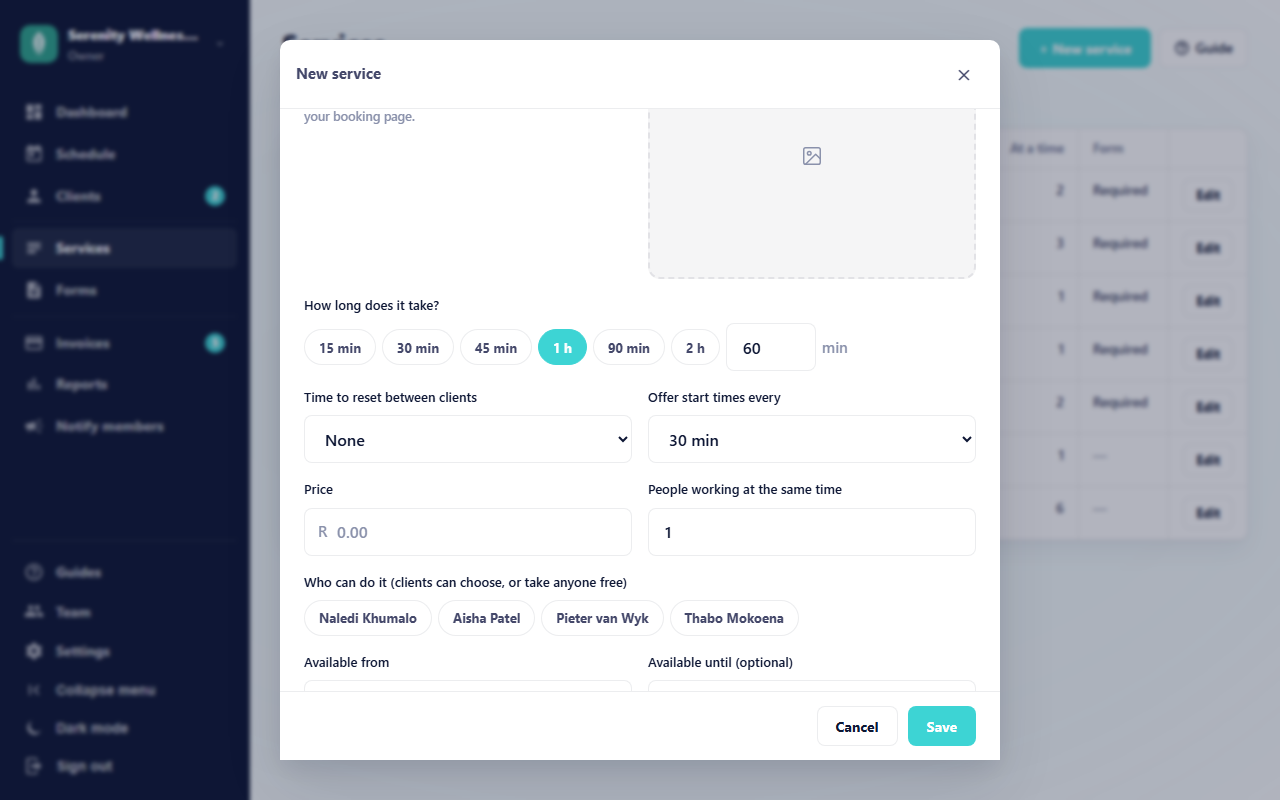
Steps
- Go to Services and tap + New service.
- Under How is it booked?, choose By appointment (most businesses) or Fixed times (classes, set slots).
- Type the Service name, for example "Red Light Therapy".
- Add a Short description. Clients see it on your booking page.
- For a By appointment service, choose how long it takes. For fixed times, set the days, start time and end time.
- Enter the Price in Rand. Leave it blank if you do not want to show one.
- Tap Save.
Optional extras
- Category: services with the same category are grouped together on your booking page, for example "Massage".
- Photo: a photo of the service shown to clients on the booking page.
- Required form: a form the client must fill in (see "Attach a form to a service").
- Session record: the template your team uses for notes at each visit (Settings, Session records tab).
- Available from and Available until: the dates the service can be booked.
Editing a service
Tap Edit on its row. Changes to name, price and form also update its future sessions. Past sessions are left alone.
Stopping a service
There is no switch to hide a service. Edit it and set Available until to the last date you want to offer it. Clients can no longer book after that date. Bookings already made stay on your Schedule until you cancel them.
Colour
Each service gets its own colour automatically. It is the same on the Schedule and the Dashboard. You cannot change it.
Related guides
By appointment or fixed times: which to chooseAppointments suit one-to-one work. Fixed times suit classes and set sessions.Length, reset time and start timesSet how long a service takes, the gap between clients, and how often start times are offered.Choose who does a serviceTick the staff who can do a service so clients can choose them or take anyone free.Attach a form to a serviceAsk clients to fill in a form (such as a health questionnaire) when they book.Set your opening hoursTell the app when you work, so clients can book the free time inside.