Attach a form to a service
Ask clients to fill in a form (such as a health questionnaire) when they book.
Create and publish a form first (on the Forms screen). Only published forms appear in the list.
Steps
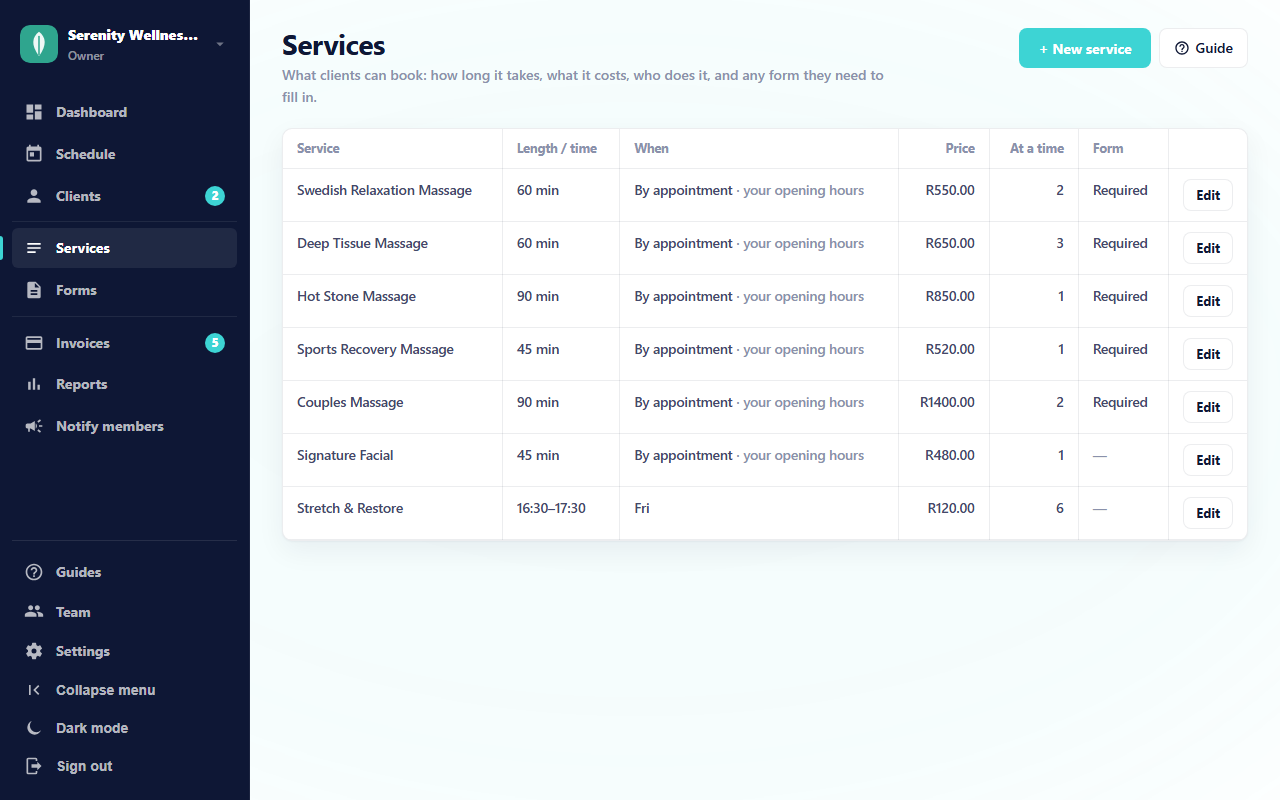
- Go to Services and tap Edit on the service.
- Scroll to Required form (optional) and choose your form. The default is None.
- Leave the box ticked if the client must complete it: "Client must complete this form before their booking is confirmed". Untick it to make the form optional.
- Tap Save.
Waitlisted clients
A client on a waitlist is not asked for the form straight away. When you promote them, the session shows that their form is still pending, so you can send it to them.
The Forms column
On the Services table, the Form column shows Required, Optional, or a dash if no form is attached.
Related guides
Create, edit and stop offering a serviceAdd something clients can book, change it later, or take it off your page.The waitlist and promoting a clientWhat happens when a session is full, and how to give someone a place.The client's manage linkHow clients cancel or change their own booking, and how to set the cut-off.