Set your opening hours
Tell the app when you work, so clients can book the free time inside.
Appointment services are booked inside your opening hours. With no hours saved, nothing can be booked.
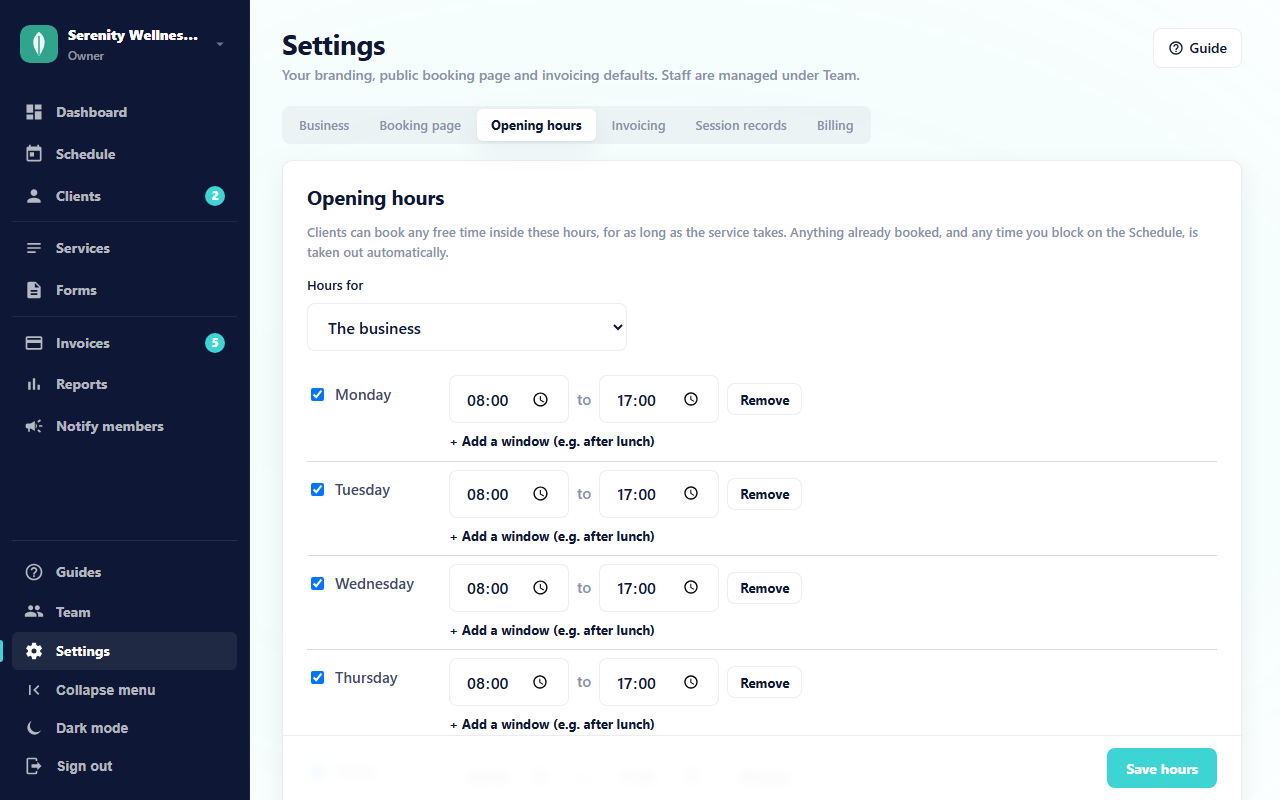
Steps
- Go to Settings and open the Opening hours tab.
- Tick each day you work. A time window of 08:00 to 17:00 appears.
- Change the times with the two time boxes on each day.
- For a lunch break, tap + Add a window (e.g. after lunch) and adjust both windows.
- To close a window, tap Remove. Untick a day to mark it Closed.
- Tap Save hours. You will see "Saved."
Hours for one staff member
If you have staff, a "Hours for" box appears. Choose a person and untick "Works the business hours" to give them their own week, such as a part-timer. Save their hours the same way.
What is taken out automatically
Anything already booked and any time you block on the Schedule is removed from the free time clients can see.
Related guides
Block time off and set special daysClose lunch, leave or a public holiday, or set different hours for one date.Create, edit and stop offering a serviceAdd something clients can book, change it later, or take it off your page.Go live: from sign-up to your first real bookingEverything to do, in order, so clients can book you online today.