How to send an invoice and share the client link
Mark an invoice as sent and give the client their private link to view it.
Marking an invoice as sent makes it visible to the client on a private link. You then pass the link on yourself, for example by WhatsApp or email.
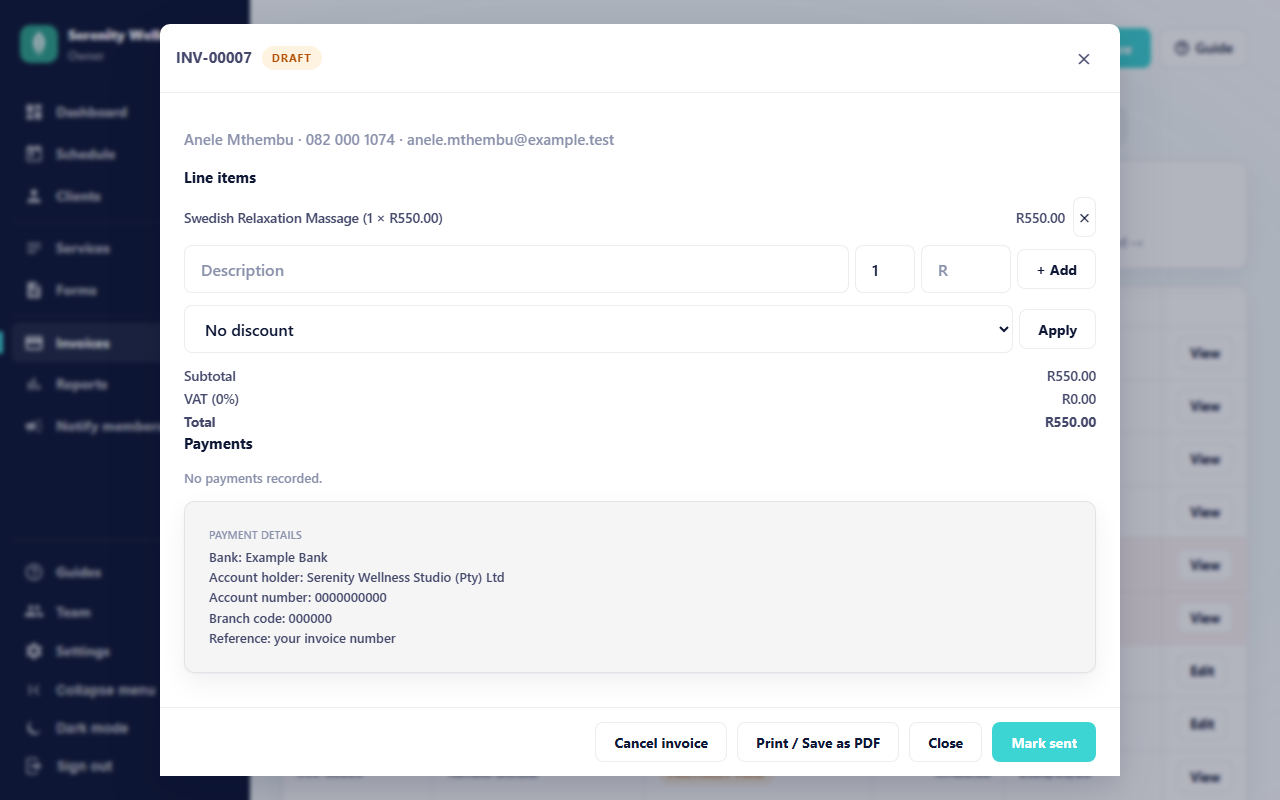
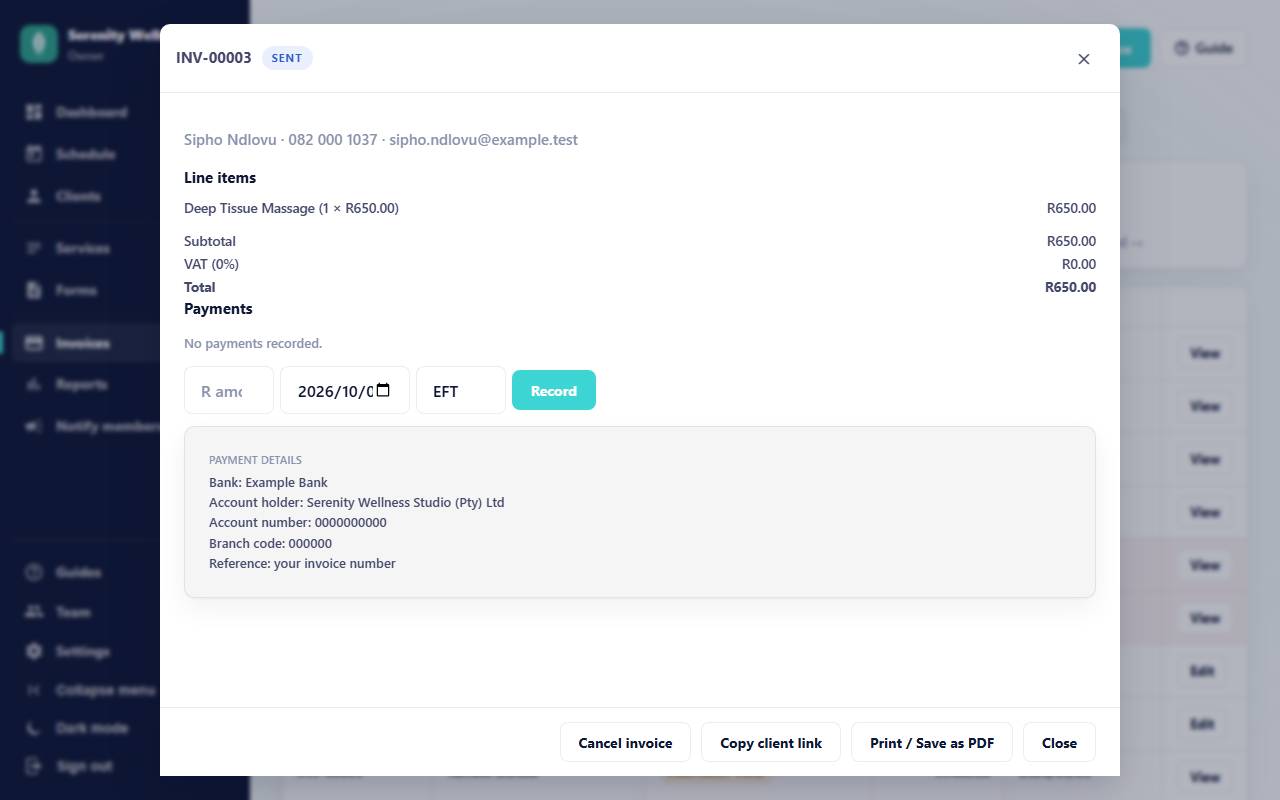
Steps
- Open Invoices and click “Edit” on the draft.
- Check the lines, discount and total.
- Click “Mark sent”.
- Open the invoice again with “View”.
- Click “Copy client link”. The button says “Link copied”.
- Paste the link into a WhatsApp message or an email to your client.
What the client sees
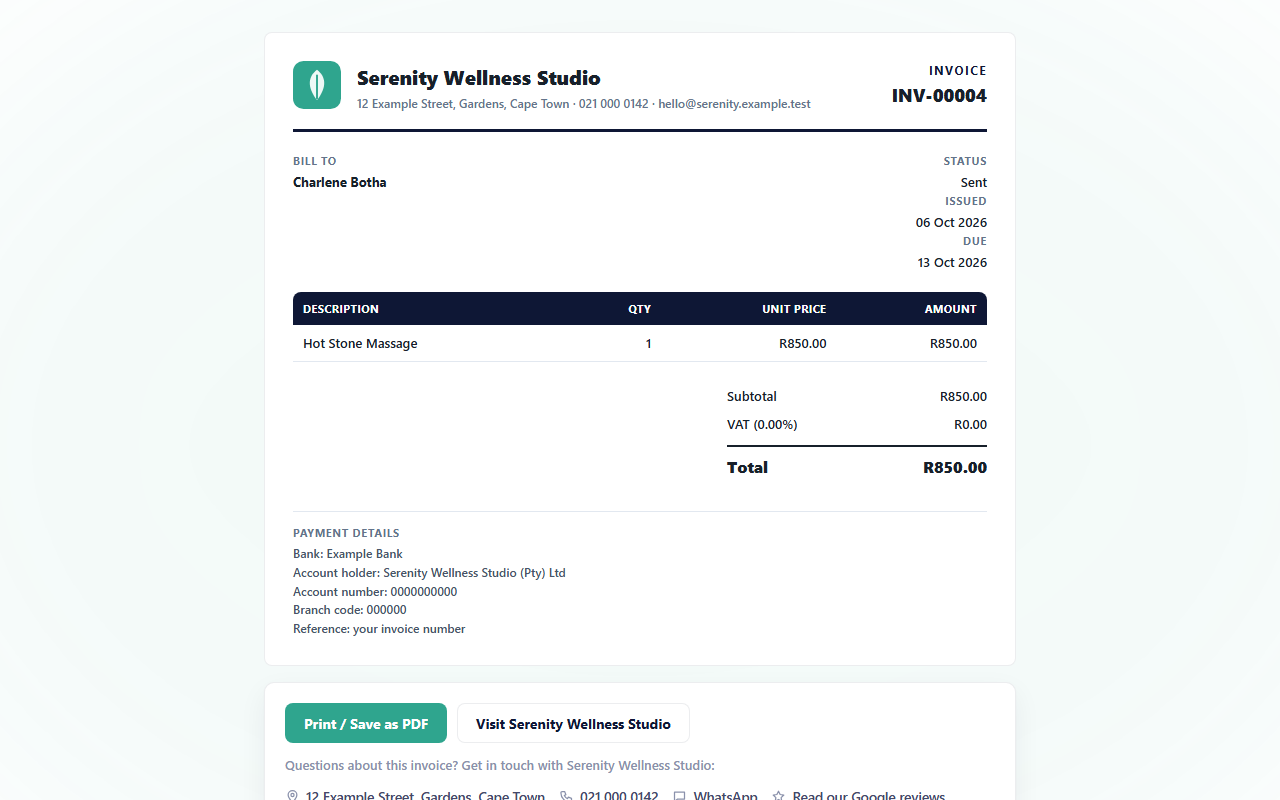
The link opens a page that looks like the invoice, in your brand colour. No login is needed.
- Your business details, the lines, the total, any payments received and the balance due.
- Your banking details, and your contact buttons.
- A “Print / Save as PDF” button, and a link to your booking page if it is switched on.
- The client’s phone and email are not shown on the public page.
If you have switched WhatsApp on under Settings, Billing and the client agreed to WhatsApp updates, they may also get a short notice that an invoice was sent. That notice does not contain the invoice itself. Share the link yourself if you want them to see it.
Related guides
How to print an invoice or save it as a PDFUse the browser’s print window to print the invoice or save a PDF to email.How to record a payment on an invoiceNote down cash, EFT or card payments so the invoice shows paid or part-paid.WhatsApp messages: what is sent, who gets it and what it costsOptional automatic WhatsApp updates to clients, paid for from a wallet you top up.