How to record a payment on an invoice
Note down cash, EFT or card payments so the invoice shows paid or part-paid.
SimpleApps does not take payments from your clients online. Clients pay you by EFT, cash or your own card machine, and you record it here.
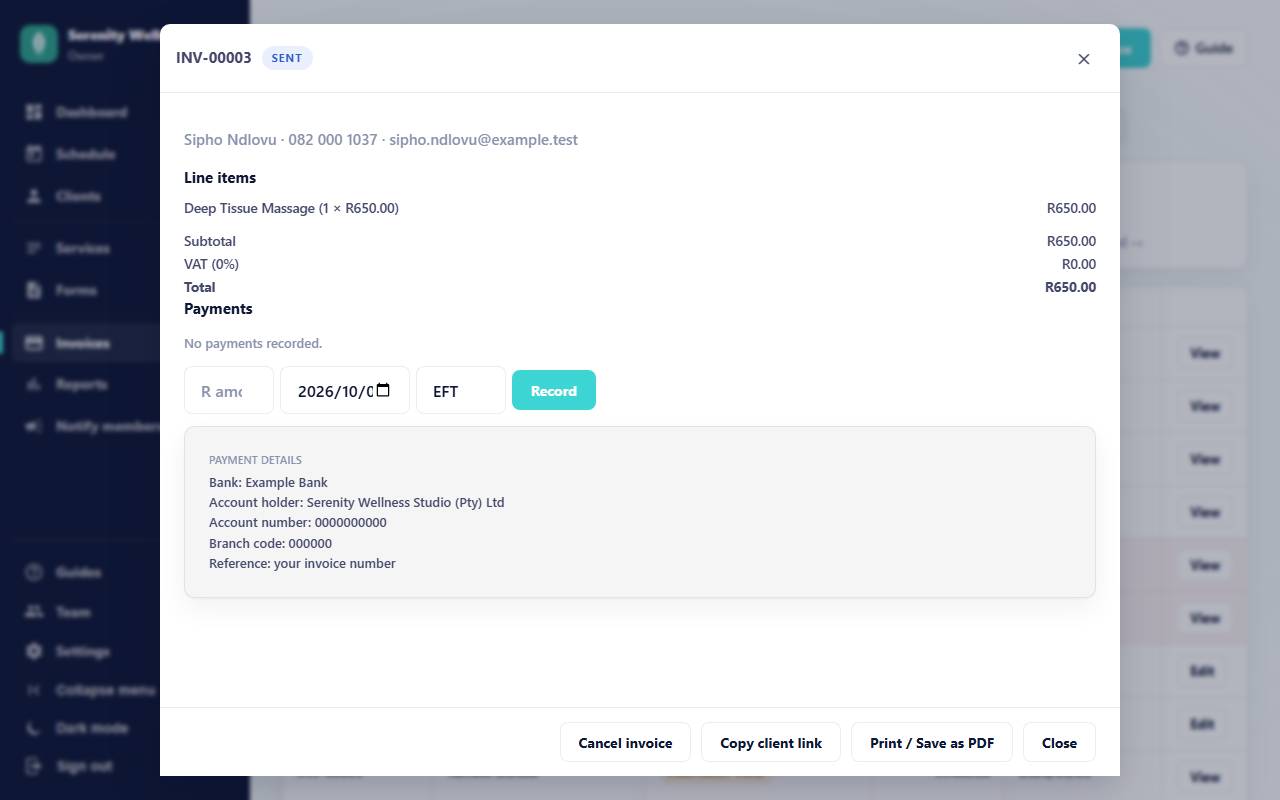
Steps
- Open Invoices and click “View” on a sent invoice.
- Scroll to “Payments”.
- Type the Amount in Rand.
- Check the date. It starts as today.
- Type the method, for example EFT or cash.
- Click “Record”.
- The invoice moves to Part-paid or Paid, and the balance due updates.
Mistakes
- Click the ✕ next to a payment to delete it. The status updates again.
- “More than the balance still due” means the amount is bigger than what is left. Lower it.
- “Payments can only be recorded on a sent invoice” means it is still a draft. Click “Mark sent” first.