What the invoice statuses mean, and overdue invoices
Draft, Sent, Part-paid, Paid, Overdue and Cancelled explained, plus how to chase what is owed.
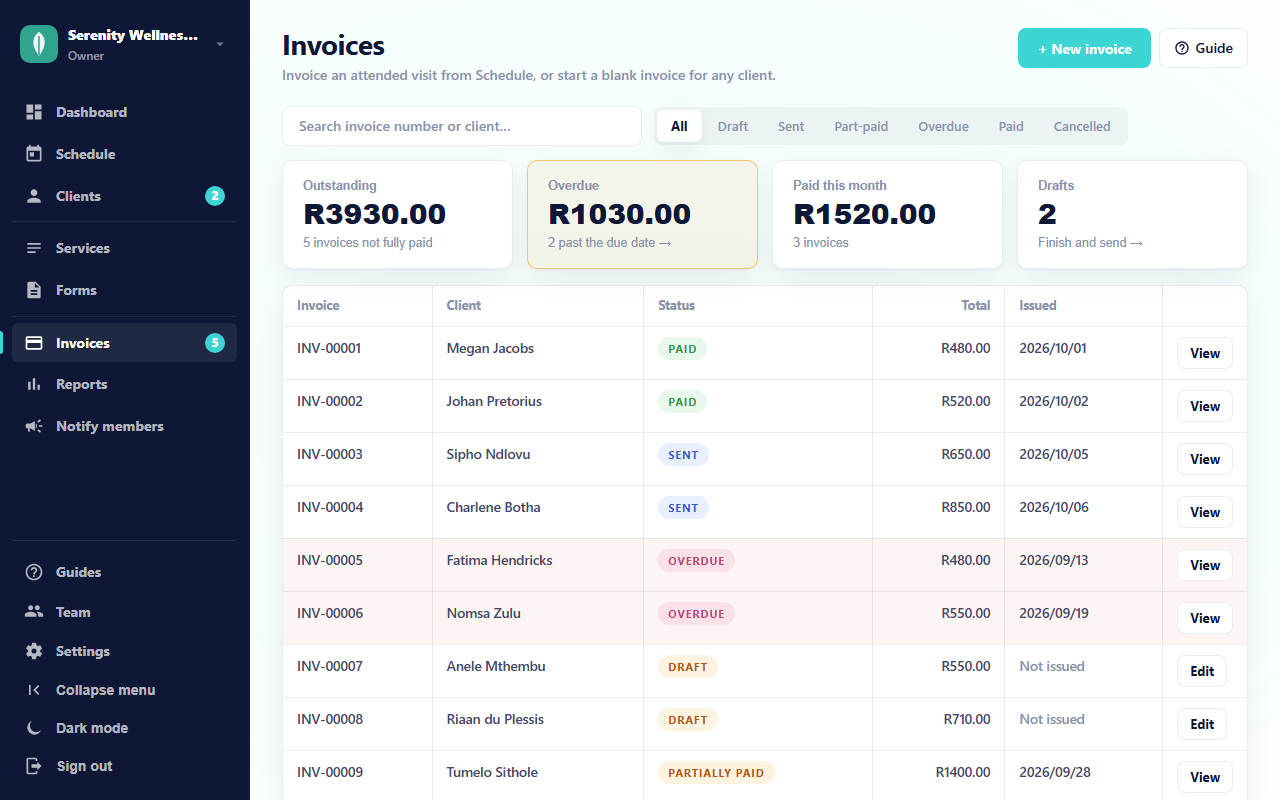
The statuses
- Draft: you are still working on it. The client cannot see it.
- Sent: the client can open it. Waiting for payment.
- Part-paid: some money was recorded, but not all.
- Paid: the balance is covered.
- Overdue: sent, unpaid, and past the due date. The row is lightly shaded.
- Cancelled: voided. You can cancel any invoice that is not paid.
The totals at the top
Four tiles sit above the list. Click a tile to filter the list to it.
- Outstanding: money still owed on sent, part-paid and overdue invoices.
- Overdue: the amount past its due date.
- Paid this month: invoices paid, issued this month.
- Drafts: invoices you have not sent yet.
When does an invoice become overdue?
The due date is the issue date plus the payment terms (in days) you set under Settings, Invoicing. After that date the status changes to Overdue by itself.
Related guides
How to record a payment on an invoiceNote down cash, EFT or card payments so the invoice shows paid or part-paid.How to send an invoice and share the client linkMark an invoice as sent and give the client their private link to view it.How to set your invoicing defaultsChoose your invoice number prefix, payment terms and VAT settings once.