How to invite someone to log in to your business
Send an email invitation, choose their role, and manage it afterwards.
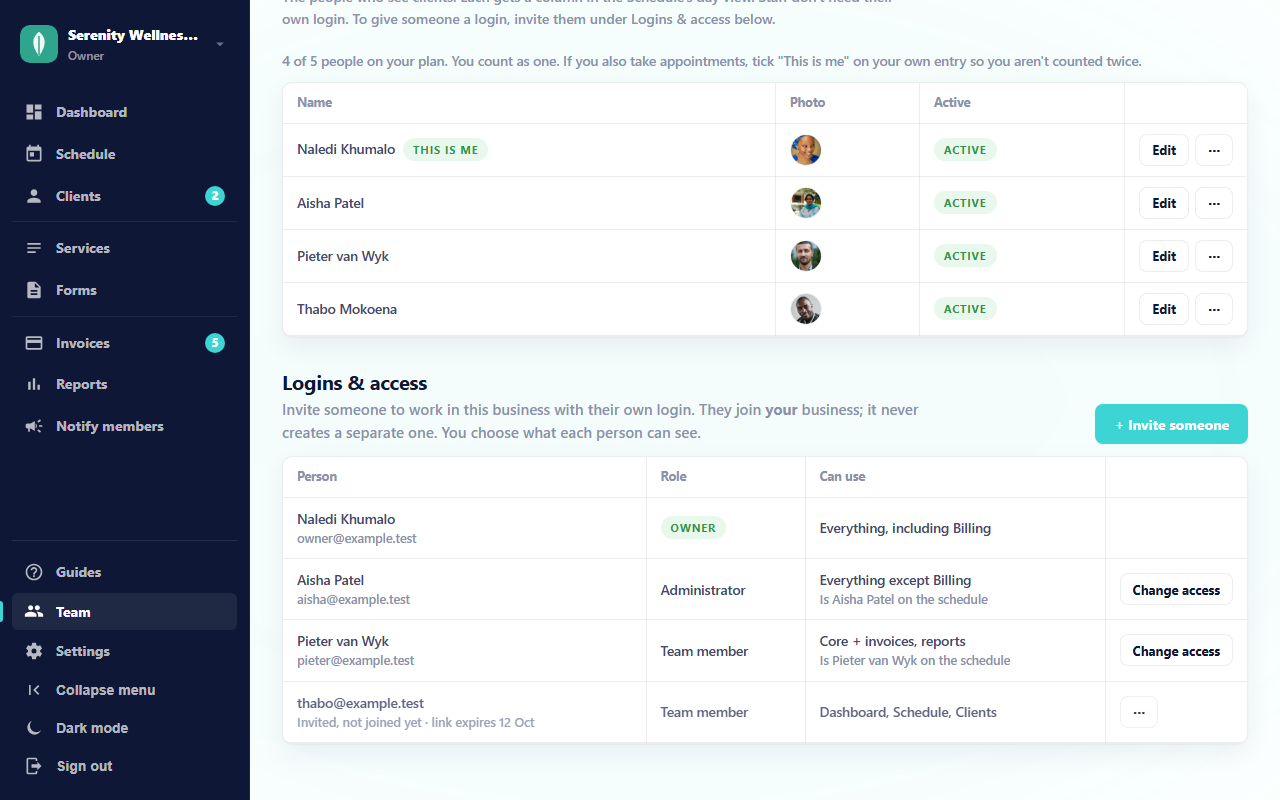
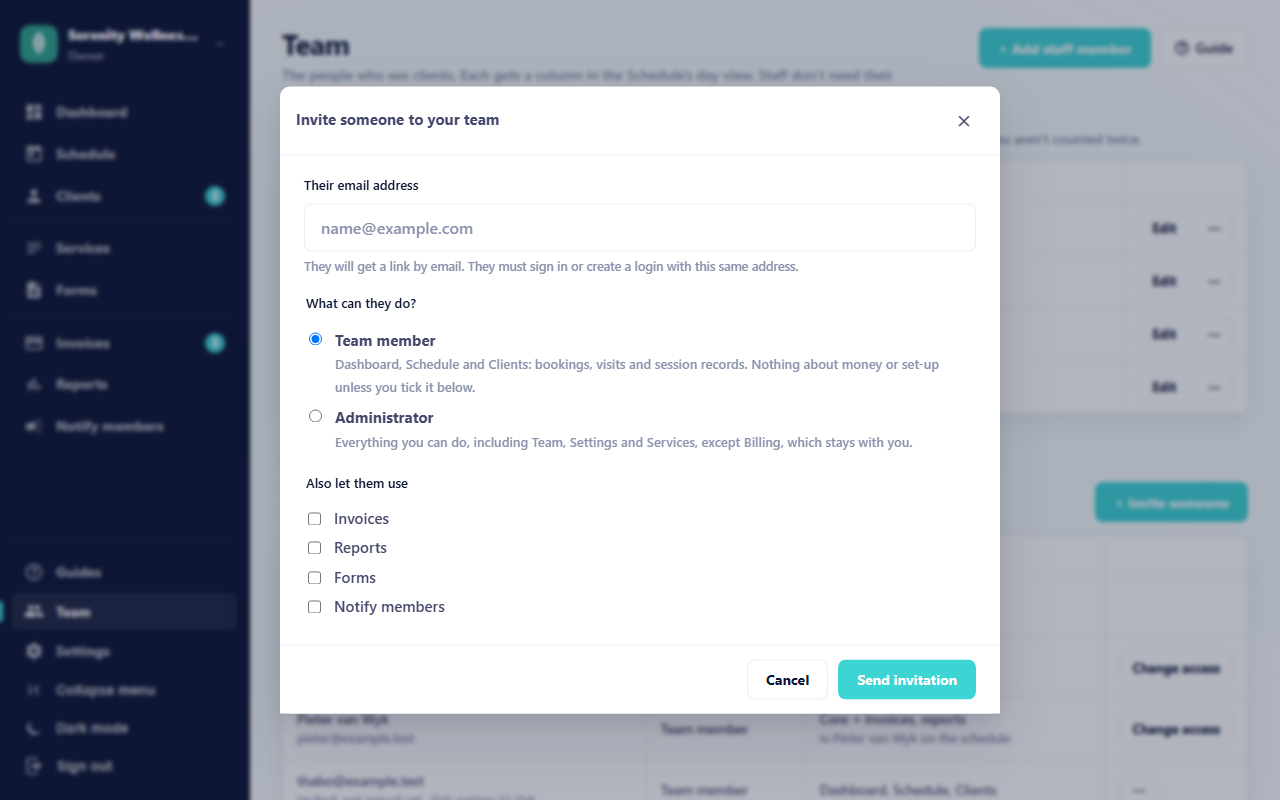
Steps
- Open Team and scroll to “Logins & access”.
- Click “+ Invite someone”.
- Type their email address.
- Choose “Team member” or “Administrator”.
- For a Team member, tick any extras under “Also let them use”.
- Click “Send invitation”.
What happens next
- They get an email with a link that works for 7 days.
- Until they join, they show in the list as “Invited, not joined yet”, with an expiry date.
- From the ⋯ menu on that row you can choose “Send again” or “Cancel invitation”.
- Once they join, you can click “Change access” to change their role or extras, or to remove them.
Messages you might see
- “That is your own address”: you cannot invite yourself.
- “That person is already on your team.”
- “You have sent a lot of invitations this hour”: wait and try again.
- If the email could not be sent, the invitation is saved. Use “Send again” in a moment.
Related guides
How to accept a team invitationFor the person invited: open the link and join the business you were invited to.Owner, Administrator and Team member: what each can doThe three roles, and the extras you can tick for a Team member.How to remove someone’s accessTake away a login straight away, or cancel an invitation that was not accepted.