How to add, edit or deactivate a staff member
Add someone to the roster so they appear on the Schedule and can be assigned work.
Steps
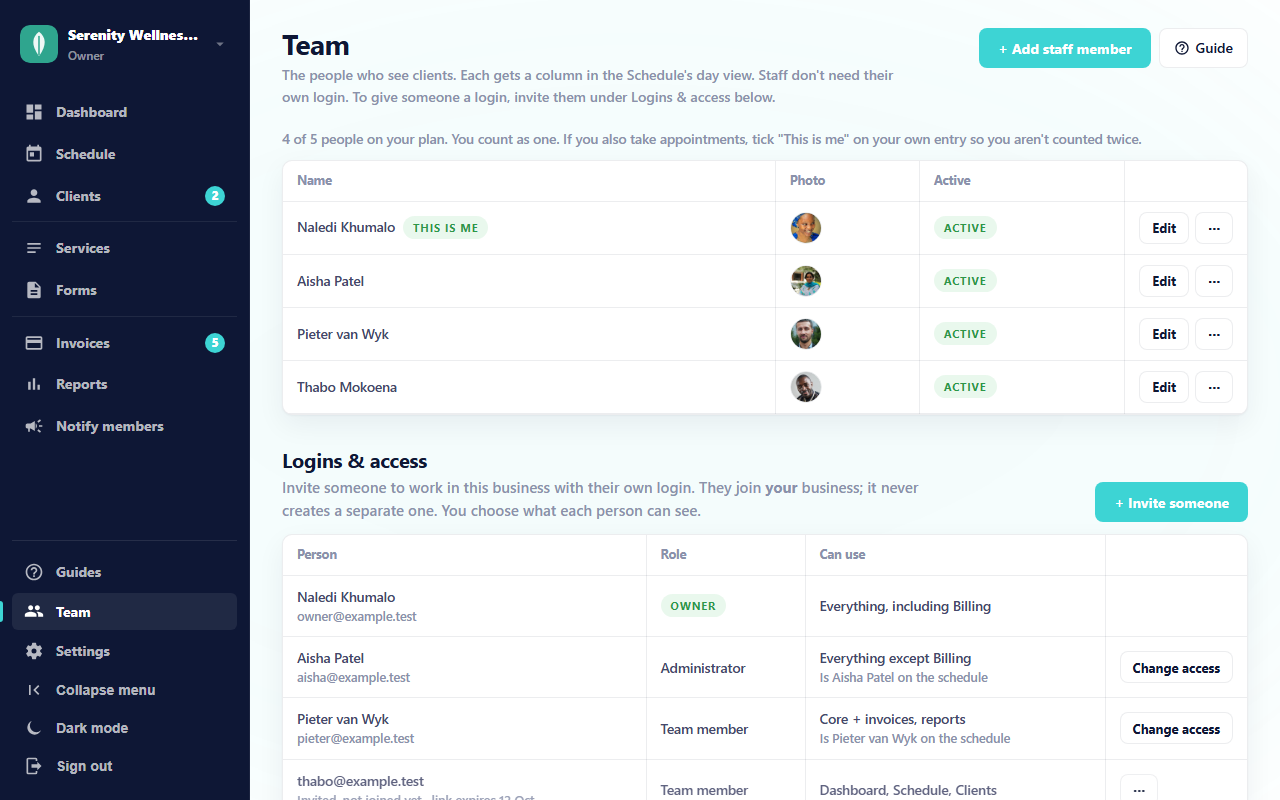
- Open Team from the menu.
- Click “+ Add staff member”.
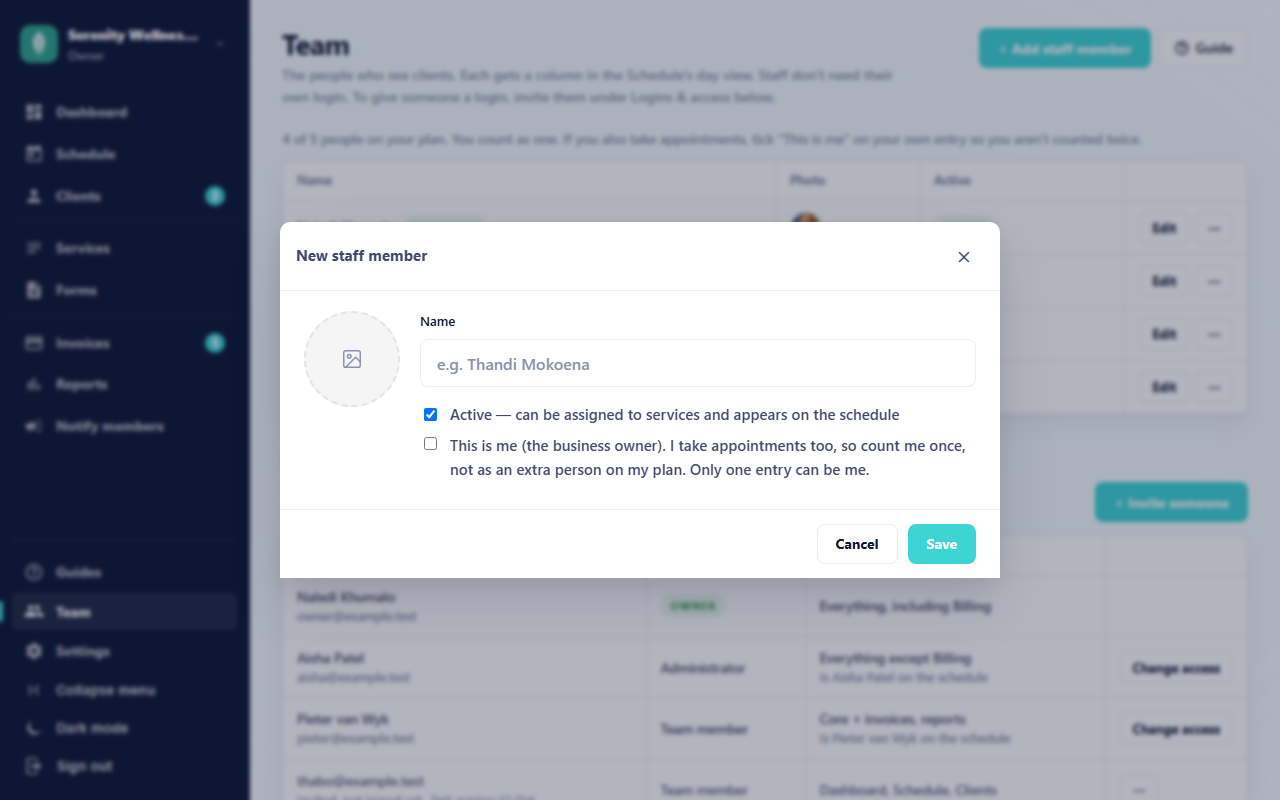
- Type the Name and add a photo if you like.
- Leave “Active” ticked so they can be assigned to services and appear on the schedule.
- If this entry is you, tick “This is me”.
- Click “Save”.
Changing someone
- Click “Edit” on their row to change name, photo or settings.
- Open the ⋯ menu and choose “Deactivate” when they leave. They disappear from the schedule but nothing is deleted. Choose “Reactivate” to bring them back.
Counting people on your plan
You count as one person. If you also take appointments, add yourself and tick “This is me”, so you are counted once and not twice. Only one entry can be you. A line above the list shows how many people you have against your plan.