How to import clients from a spreadsheet (CSV)
Bring your existing client list over from Excel, Google Sheets or another app, safely and without doubles.
You see a preview of exactly what will happen before anything is added, and you can safely import the same file twice.
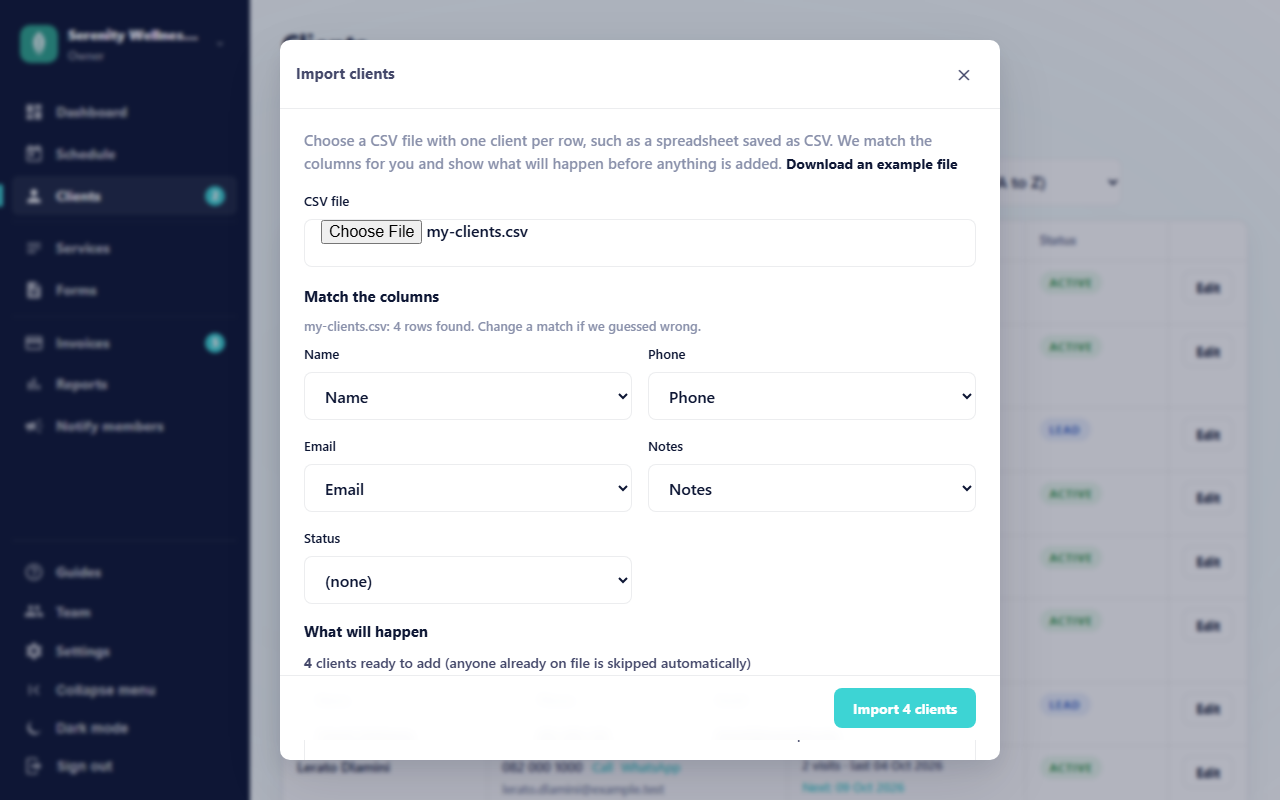
Steps
- Open Clients and click Import clients.
- Click Download an example file if you want to see the layout. Fill it in or copy your own list into it.
- Save your spreadsheet as a CSV file.
- Under CSV file, choose your file.
- Check the Match the columns section. Change any match we guessed wrong, for example which column holds the phone number.
- Read What will happen to see how many clients are ready to add and how many will be skipped.
- Click Import (the button shows how many clients), and wait until you see Import finished.
- Click Done.
What you can import
- Name (or First name and Surname in separate columns), Phone, Email, Notes and Status.
- A row with no name is skipped.
- A client who is already on file (same email or phone) is skipped, and so is a repeat of someone earlier in the same file.
- Up to 5,000 rows and 5 MB per file. For a bigger list, split it and import the parts one at a time.
WhatsApp permission
WhatsApp permission is never imported. Imported clients can agree to WhatsApp updates themselves when they next book, or you can tick it on their profile once they have agreed.
Related guides
How to merge duplicate clientsJoin two records of the same person so their bookings, invoices and forms sit under one client.How to export your clients to a spreadsheetDownload every client as a CSV that opens in Excel or Google Sheets.How to add a client (and what a lead is)Add someone yourself, or let them appear when they book, and choose whether they are a lead, active or inactive.