How to add a client (and what a lead is)
Add someone yourself, or let them appear when they book, and choose whether they are a lead, active or inactive.
Clients are added automatically when someone books on your public page. Add one yourself when someone phones, walks in, or enquires but has not booked yet.
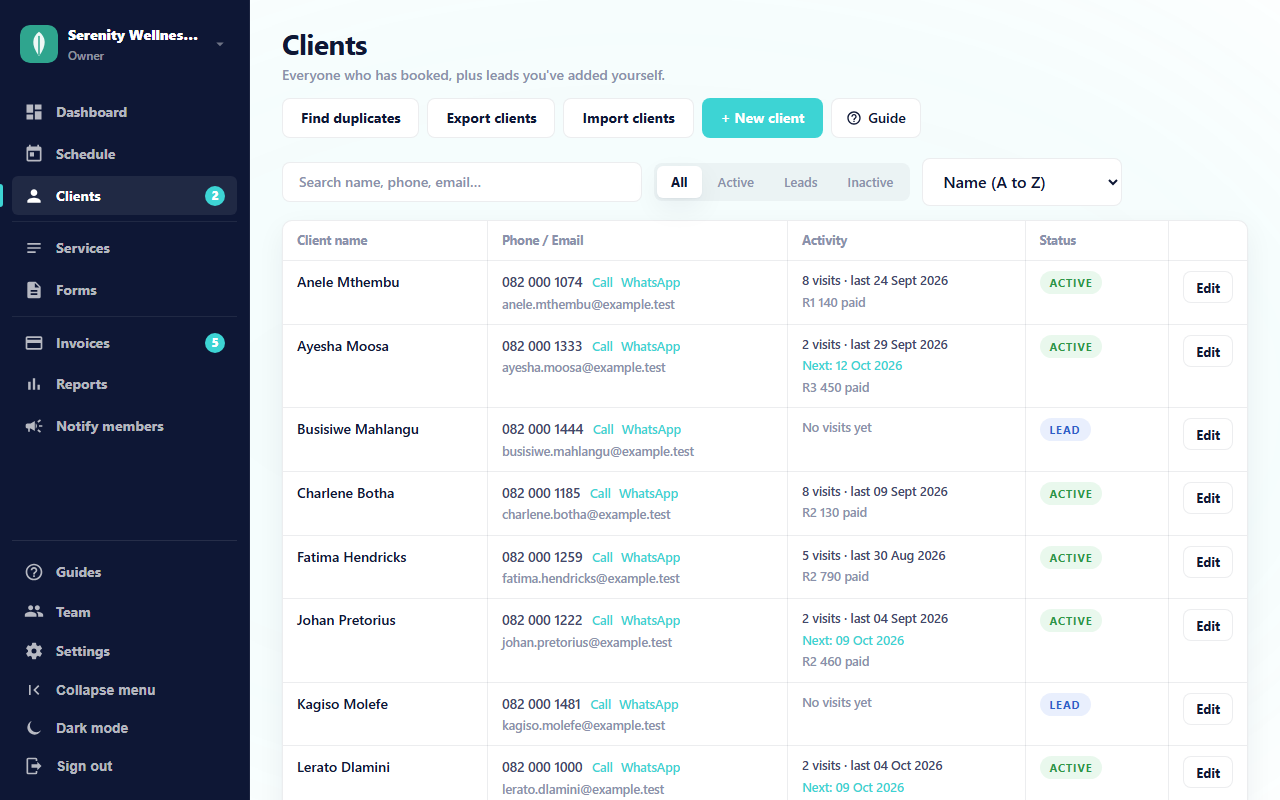
Steps
- Open Clients in the menu.
- Click + New client.
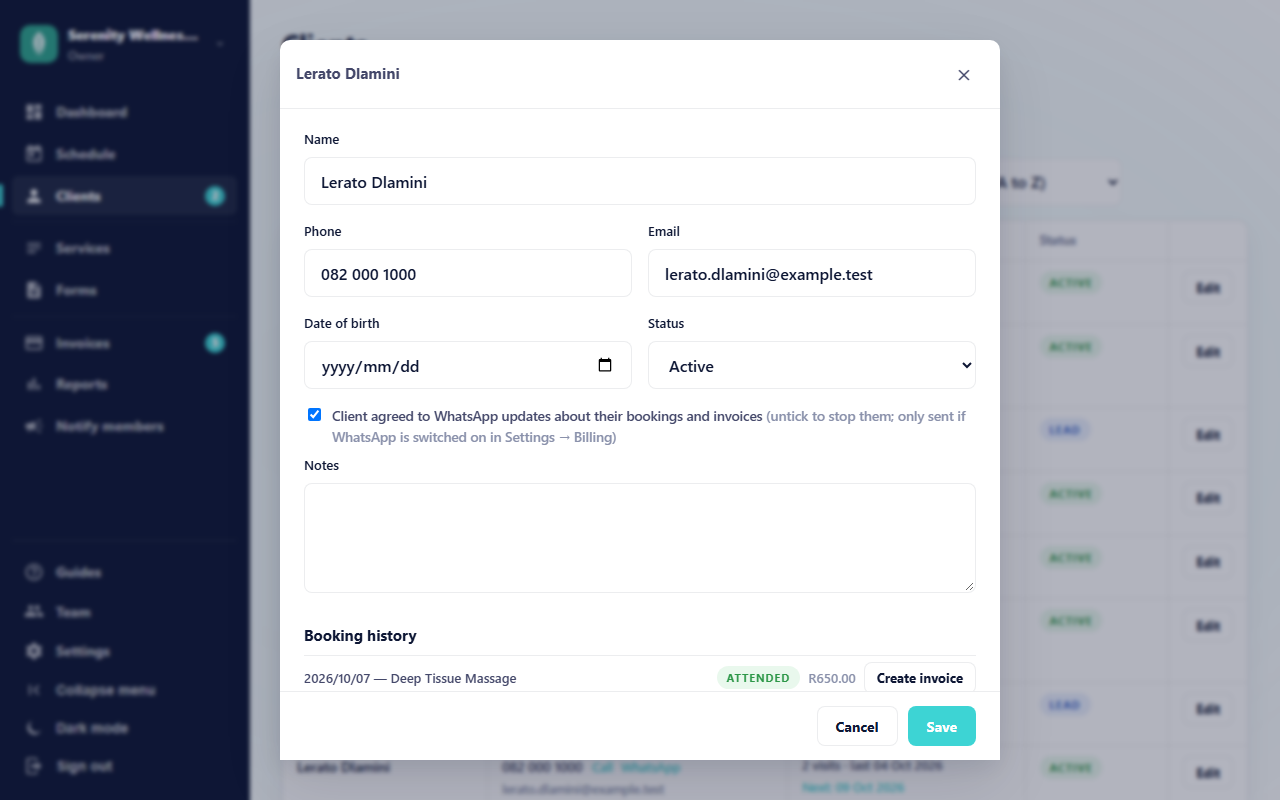
- Type the client’s Name. This is the only thing you must fill in.
- Add their Phone and Email if you have them, and their Date of birth if you keep it.
- Choose a Status: Lead, Active or Inactive.
- Type anything worth remembering under Notes.
- Click Save.
Lead, Active or Inactive
- Lead: someone who has shown interest but has not booked or been to you yet.
- Active: a client you currently look after. Use this for regulars.
- Inactive: someone who has stopped coming. Their history stays on file.
- The status is a label for you. It does not stop anyone from booking.
WhatsApp updates
The client form has a tick box for “Client agreed to WhatsApp updates about their bookings and invoices”. Only tick it if the client has really agreed. It does nothing unless WhatsApp is switched on for your business.
Related guides
How to search, filter and sort your clientsFind a client by name, phone or email, show only leads or active clients, and sort by visits or spend.How to merge duplicate clientsJoin two records of the same person so their bookings, invoices and forms sit under one client.The client profile: details, notes, booking history and formsEverything about one client in one place: contact details, notes, past visits, invoices and completed forms.