The client profile: details, notes, booking history and forms
Everything about one client in one place: contact details, notes, past visits, invoices and completed forms.
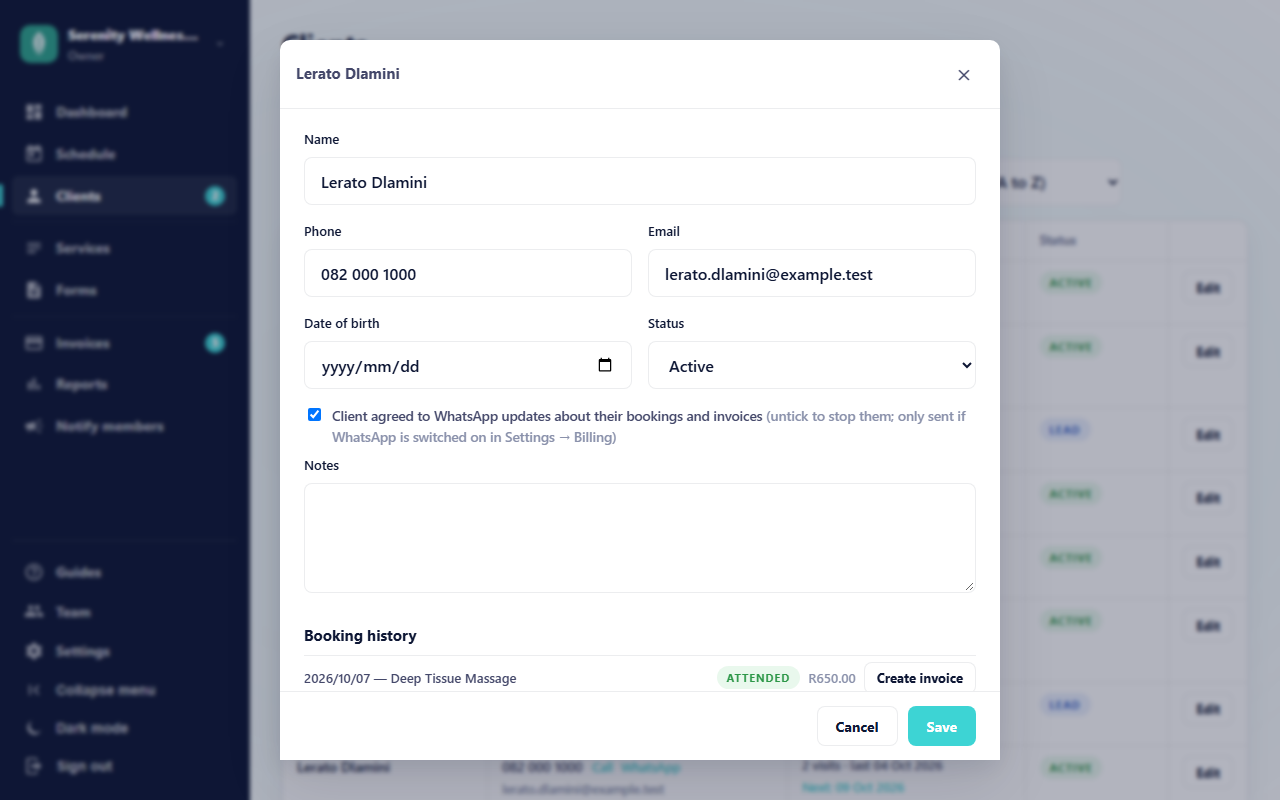
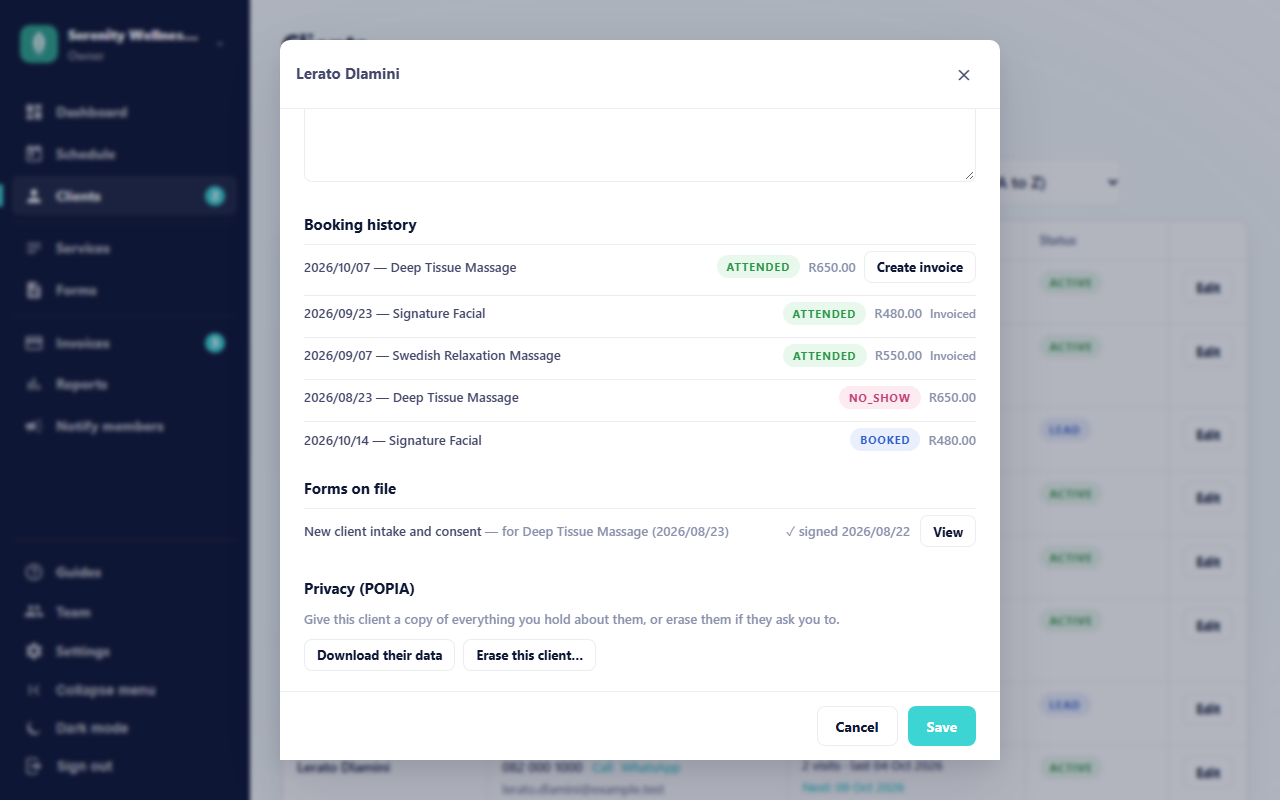
Steps
- Open Clients and click the client’s name (or Edit).
- Change their Name, Phone, Email, Date of birth or Status if needed.
- Type or update Notes. Use them for things like preferences or allergies.
- Scroll to Booking history to see their past and upcoming bookings.
- Scroll to Forms on file and click View next to a form to read their answers.
- Click Save to keep your changes.
Booking history
Each booking shows its status. If a visit is marked attended and has no invoice yet, a Create invoice button appears. If it already has one, you see Invoiced. A visit can only be invoiced once.
Forms on file
Intake and consent forms the client has completed are listed here. Click View to read the answers, photos and signature.
Session records
If your business uses session records, the profile also shows the About the client details and the visit log, with a Print record sheet button.
Related guides
How to download or erase a client’s data (POPIA)Give a client a copy of everything you hold about them, or permanently erase them if they ask.How to log a session record at a visitFill in the visit’s record, use Same as last visit, and mark the visit attended.How to view and export form responsesRead completed forms, search and filter them, print a PDF, or download them all as a CSV.