How to view and export form responses
Read completed forms, search and filter them, print a PDF, or download them all as a CSV.
Steps
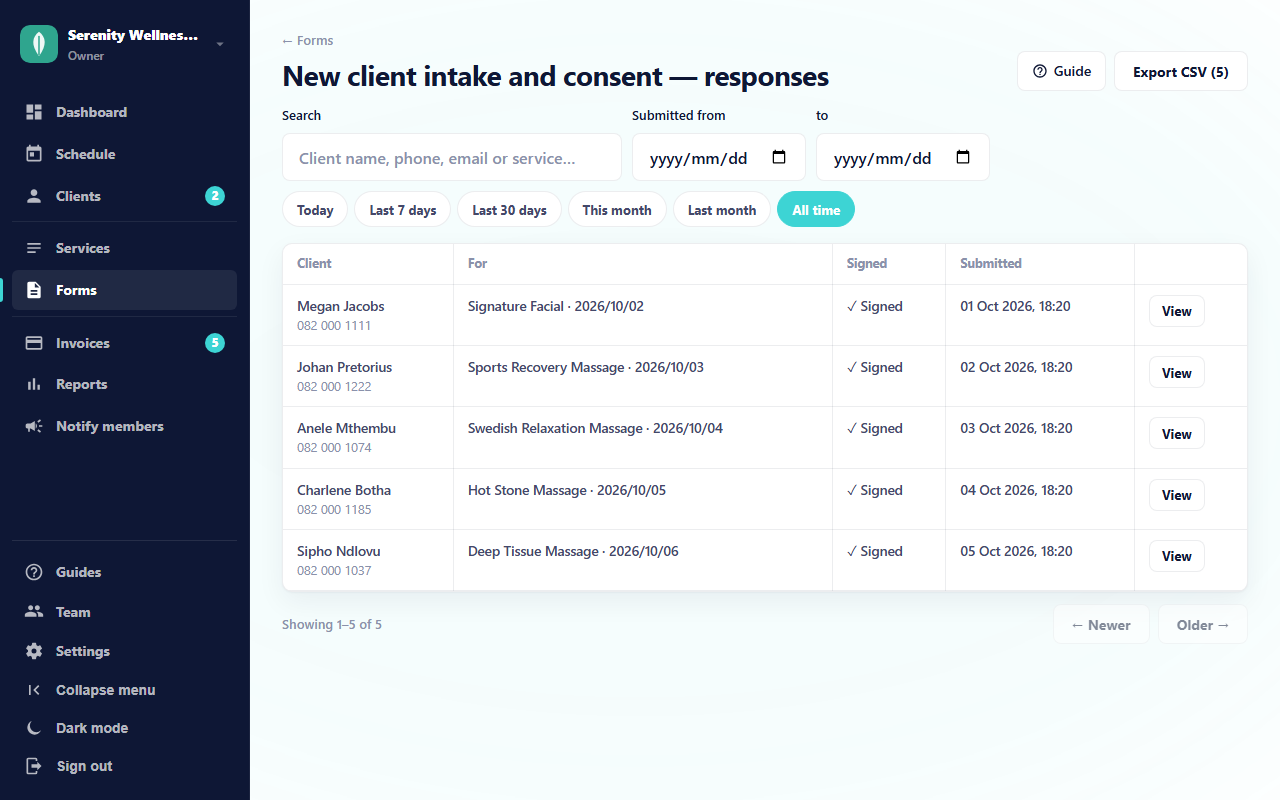
- Open Forms. In the Responses column click the count, or open the row’s More actions menu and choose View responses.
- Use Search to find a client by name, phone, email or service.
- Set Submitted from and to dates, or use the quick date buttons.
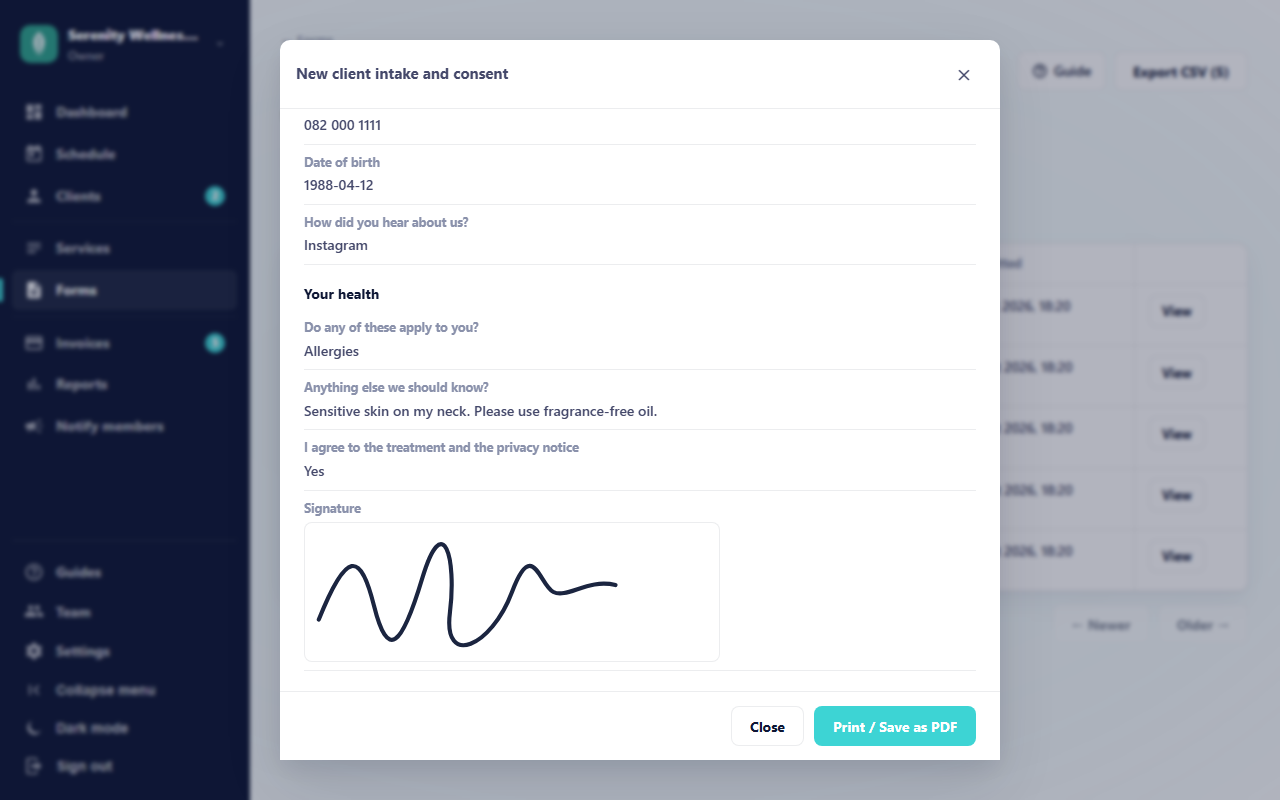
- Click View on a row to read the answers.
- In the response, click Print / Save as PDF to keep a copy.
- Click Export CSV to download everything that matches your filters as a spreadsheet.
What you see
Each row shows the Client, what it is For (the service and date), whether it was Signed, and when it was Submitted. Opening a response shows the answers, any photos, the signature, and whether POPIA consent was given. Responses go 25 to a page, with Newer and Older buttons.
Edited forms
If you edit a form after someone filled it in, the response shows the current question wording and tells you which version it was submitted on. A response from someone who did not book shows the client as Not linked.