Staff on the schedule versus team logins
Adding a staff member and inviting someone to log in are two different things.
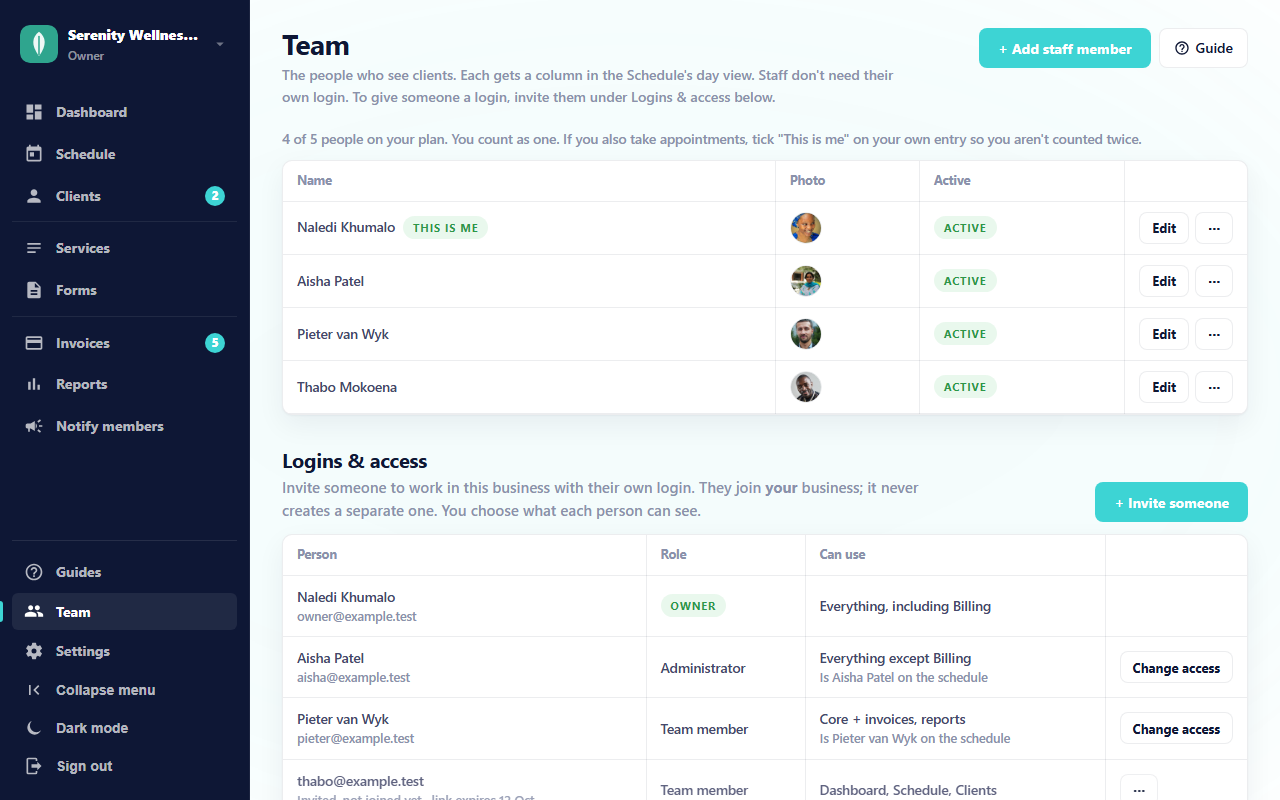
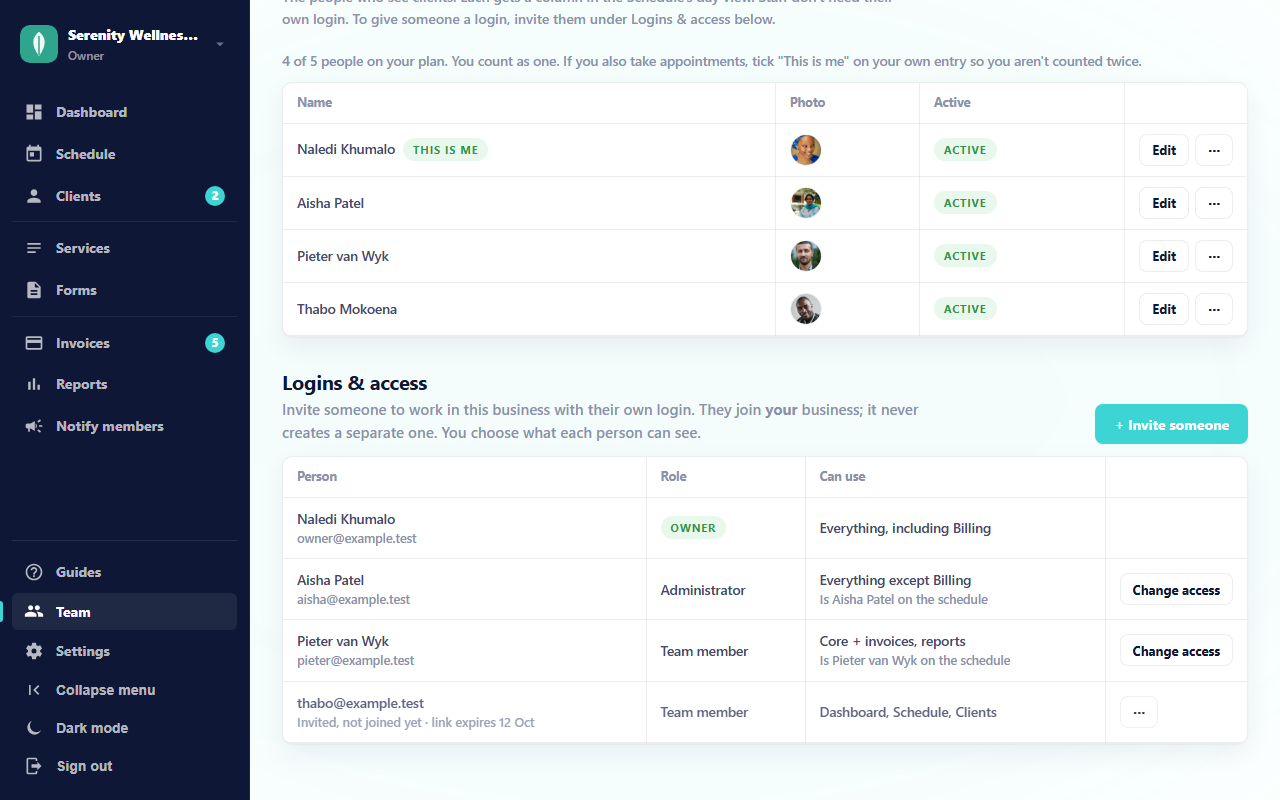
The Team screen has two parts. Mixing them up is the most common question.
Staff (the roster)
The list at the top. These are the people who see clients. Each active person gets a column in the Schedule’s day view, and can be assigned to services and bookings. They do not need a login. A name and optional photo is enough.
Logins & access
The section below. This is for people who need to sign in themselves, for example a receptionist or manager. You invite them by email, pick what they can do, and they work inside your business.
Do I need both?
- Working solo: you need neither. Add staff only once more than one person takes appointments.
- Staff who just take appointments: add them to the roster. No login needed.
- Someone who must open the app: invite them under Logins & access. You can link their login to their roster entry using “This login is”.
Related guides
How to add, edit or deactivate a staff memberAdd someone to the roster so they appear on the Schedule and can be assigned work.How to invite someone to log in to your businessSend an email invitation, choose their role, and manage it afterwards.Owner, Administrator and Team member: what each can doThe three roles, and the extras you can tick for a Team member.