How to set up session records
Build a template for the facts you note at every visit, plus the facts you keep once per client.
Session records suit businesses that note the same things at every visit, such as treatment settings, how the client responded, or a health check. Each business sets up its own fields. Setting up is for the owner and administrators.
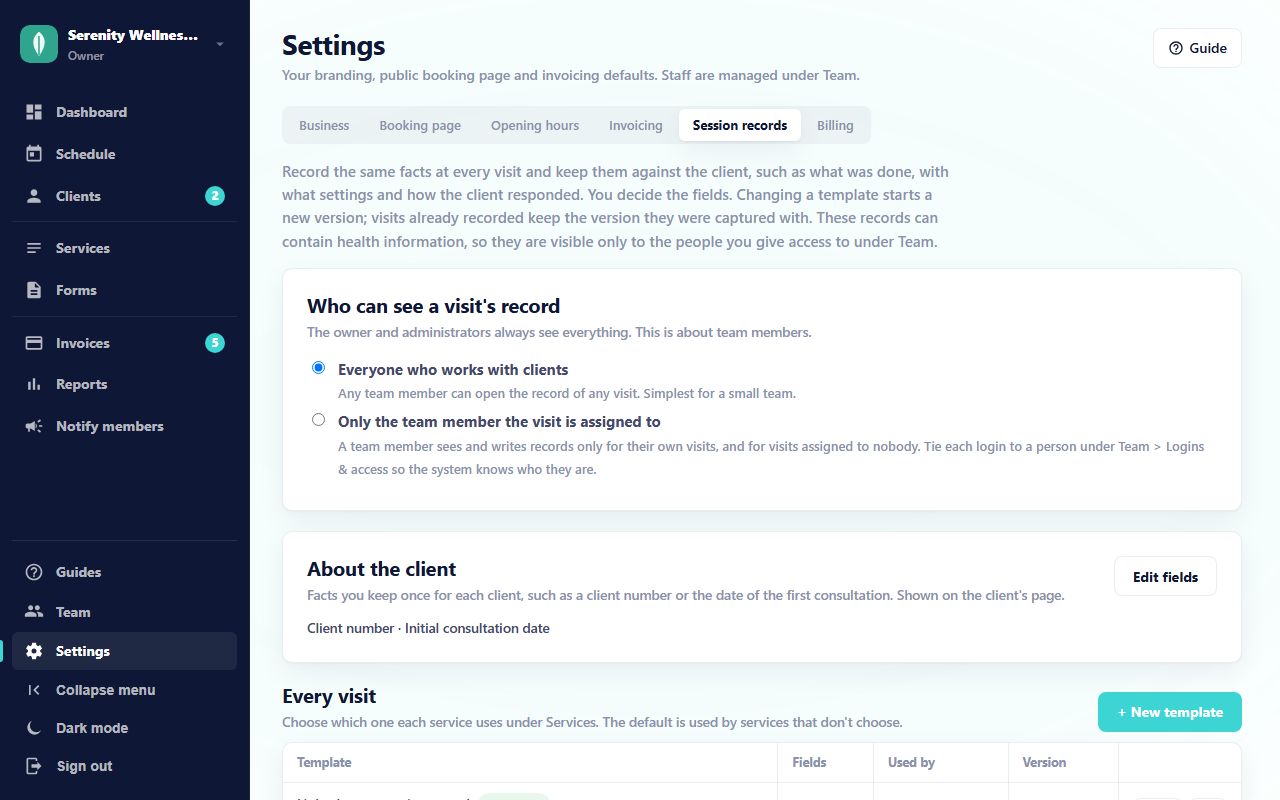
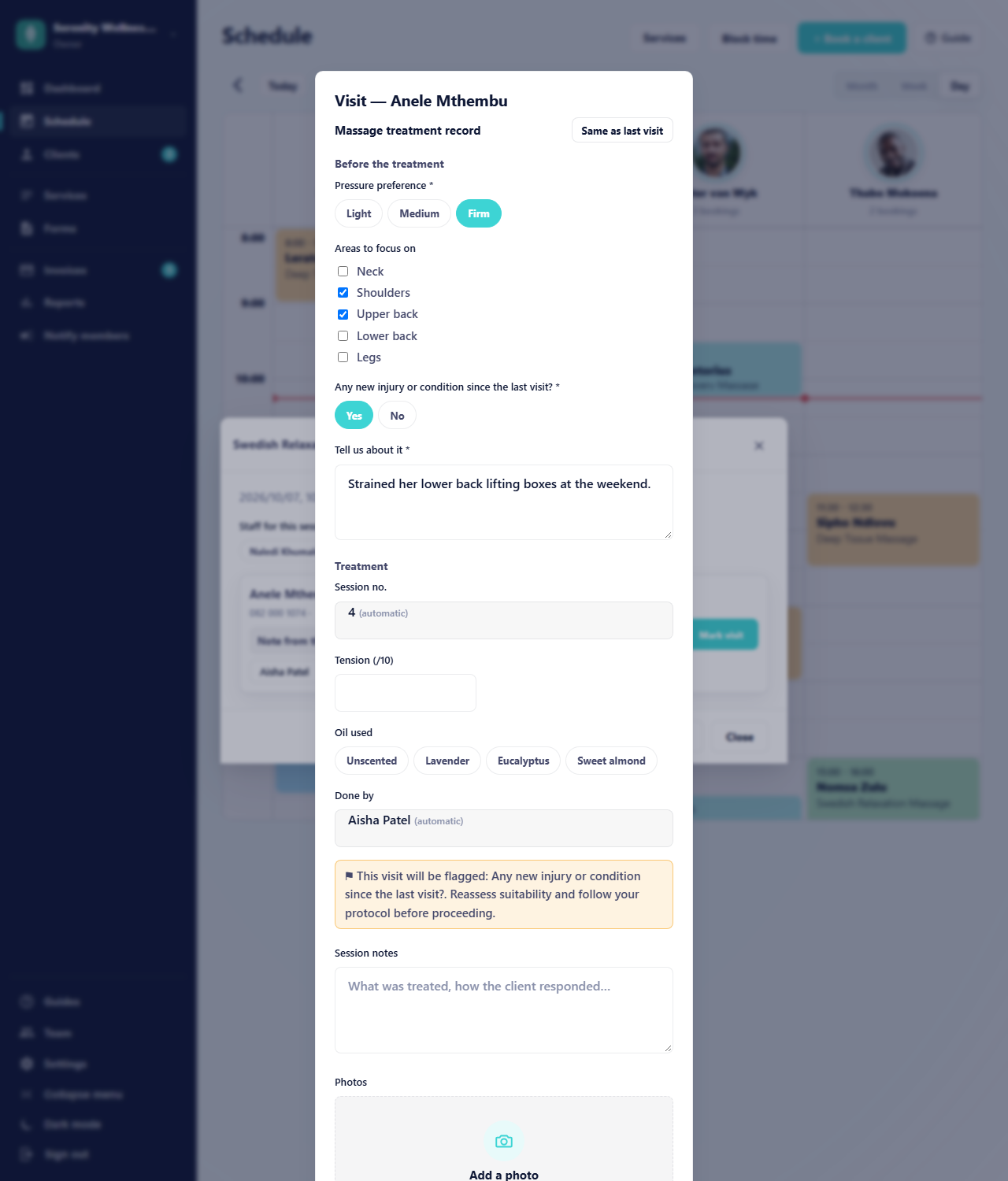
Steps
- Open Settings and click the Session records tab.
- Under Every visit, click + New template.
- Pick a ready-made template to change, or choose Start empty.
- Type a Template name.
- Under Add a field, choose a type, then fill in its label and options. Repeat for each field.
- Use the ↑ and ↓ buttons to put the fields in order.
- Click Save template.
- Go to Services, edit a service, and under Session record (optional) pick your template.
About the client (once per client)
The About the client box holds facts you keep only once for each client, such as a date of the first consultation. Click Set up (or Edit fields). Add a field of type Filled in automatically with Client number if you want clients numbered CL-0001, CL-0002 and so on. These show on the client’s profile.
Which template does a visit use?
A visit uses the template chosen on its service. Tick “Use this for services that don’t choose a template” on one template to make it your default.
Required fields
Tick “Check required fields when a visit is marked attended” if you want staff to fill in required fields before they can mark a visit attended. They can always save a draft.
Versions, duplicates and archiving
- Each time you save changes the template gets a new Version number.
- Old visit records keep the version they were written with. They are never rewritten.
- Use the row’s More actions menu to Duplicate a template, or Archive one you no longer use. An archived template can be Restored.