Go live: from sign-up to your first real booking
Everything to do, in order, so clients can book you online today.
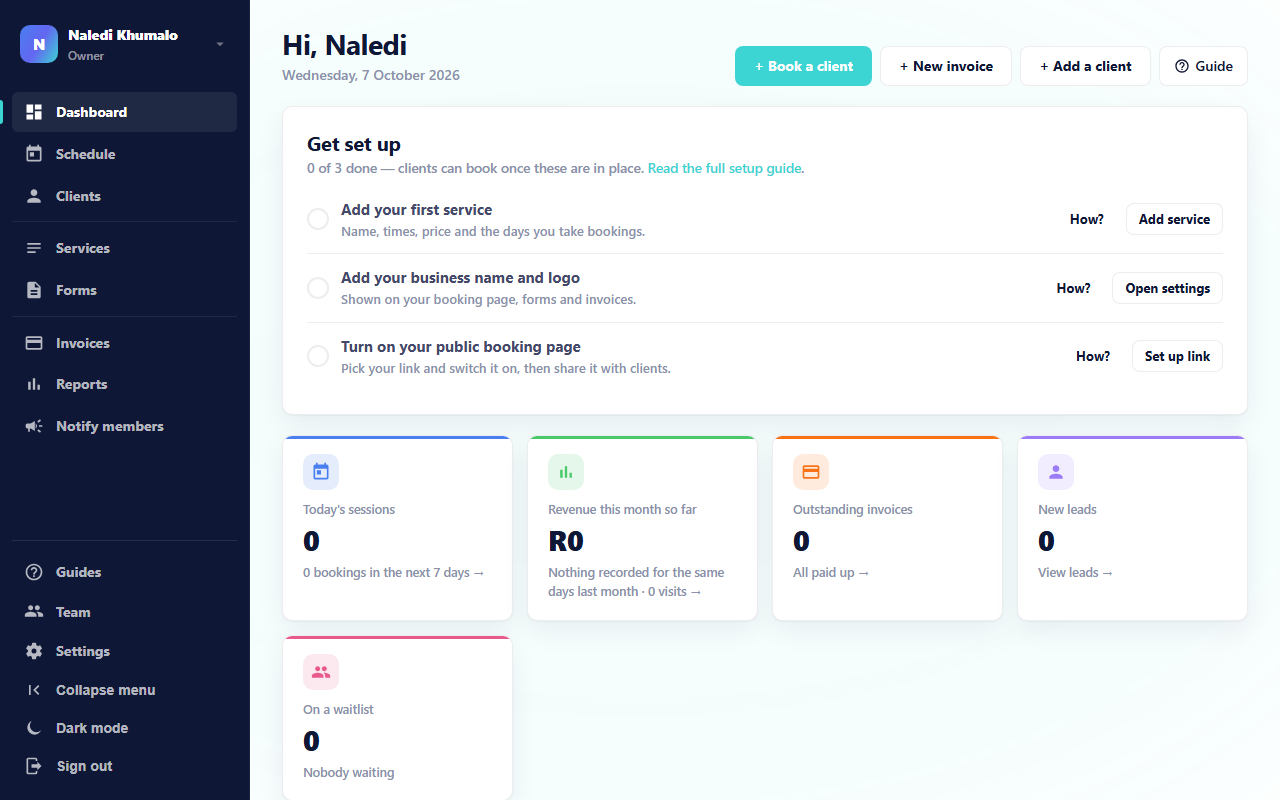
Follow these steps once, in this order. It takes about 15 minutes. The "Get set up" card on your Dashboard ticks things off as you go.
Steps
- Open the sign-up page and choose Create an account. Enter your name, email and a password, then tap Create account (or sign in with Google).
- Open the email we sent you and tap the confirm link. If you cannot find it, use Resend link in the banner at the top of the app.
- Go to Settings, open the Opening hours tab, tick the days you work, set the times and tap Save hours.
- Go to Settings, open the Business tab, add your business name (and logo if you have one) and tap Save branding.
- Go to Services and tap + New service. Give it a name, a length and a price, then tap Save.
- If other people take appointments, go to Team and tap + Add staff member for each person. Then edit your service and tick who can do it.
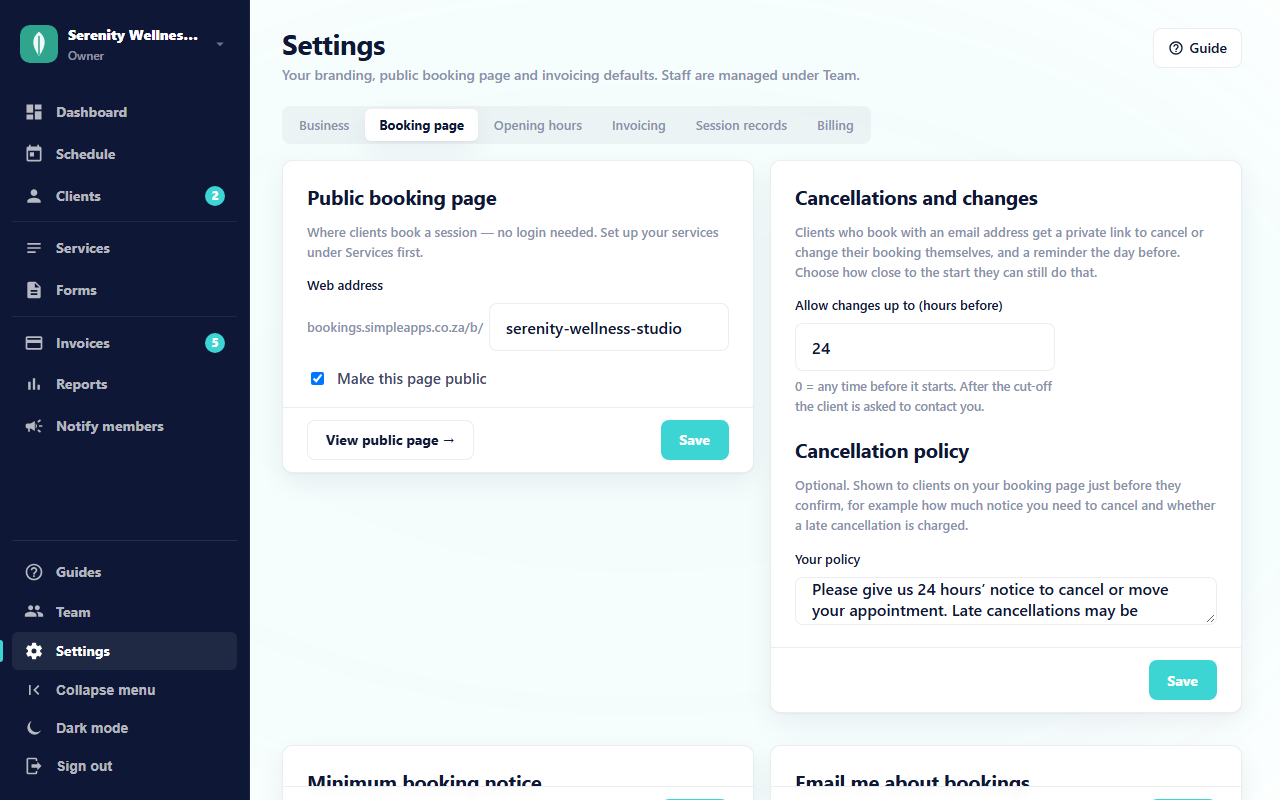
- Go to Settings, open the Booking page tab, choose your Web address, tick Make this page public and tap Save.
- Open your booking page with View public page, make a test booking as if you were a client, then check it on your Schedule.
- Tap Copy booking link on your Dashboard and share the link on WhatsApp, Instagram, Facebook or your email signature.
Why this order
- Clients can only book a service once your opening hours are set.
- Your booking page cannot be switched on until your email address is confirmed.
- Staff are optional. If you work alone, skip that step: you will not see staff columns anywhere.
After you go live
Use the test booking to see exactly what your clients see. Cancel it afterwards from the Schedule so it does not take up a real time.
Related guides
Set your opening hoursTell the app when you work, so clients can book the free time inside.Create, edit and stop offering a serviceAdd something clients can book, change it later, or take it off your page.Make your booking page live and share the linkChoose your web address, switch the page on and share it with clients.Book a client yourselfAdd a booking on a client's behalf, for a phone call, walk-in or message.Install the app on your phonePut the app on your home screen so it opens like any other app.How bookings work, from request to visitThe journey of one booking, what clients see and what you see.