The session records report and CSV download
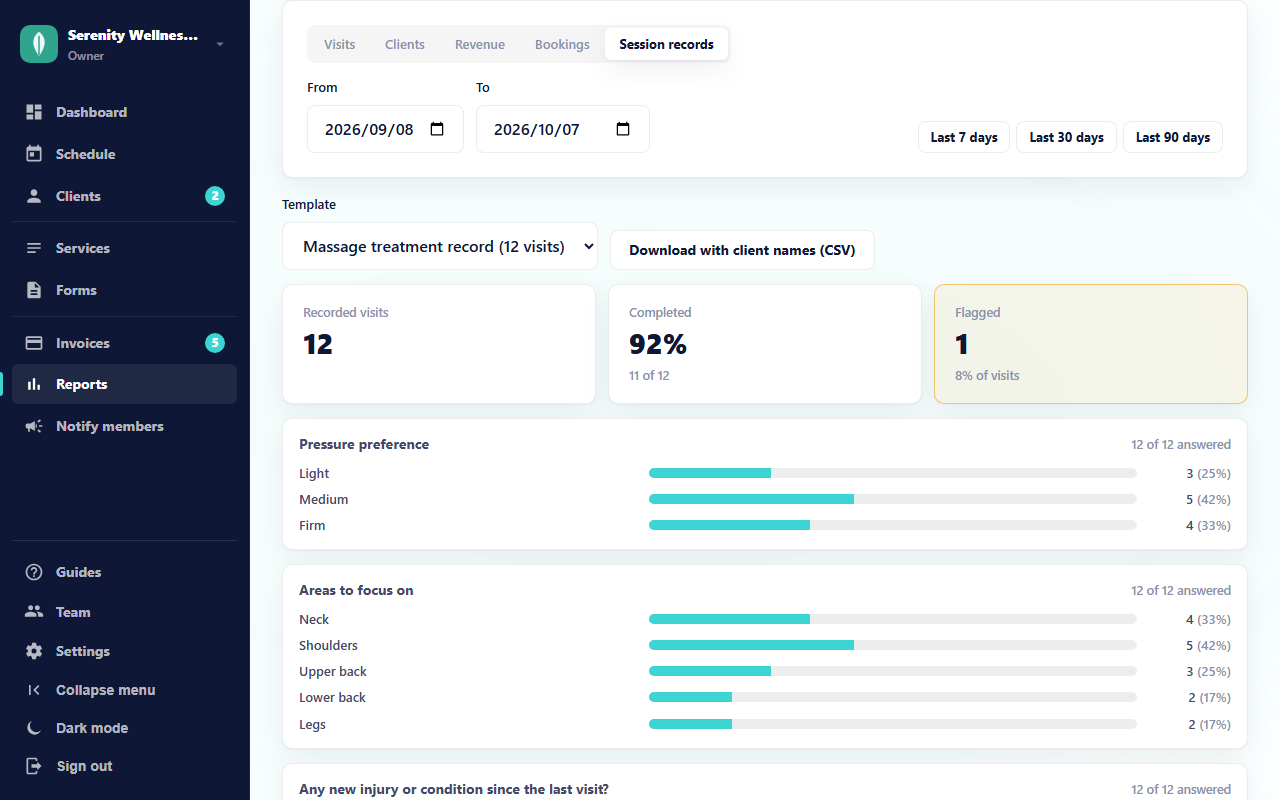
See how many visits were recorded, flagged, and how answers are spread, for a template and dates.
Steps
- Open Reports and click the Session records tab.
- Set the dates you want to look at.
- Under Template, choose the template (each is shown with its number of visits).
- Read the tiles for Recorded visits, Completed and Flagged.
- Scroll down to see each question: yes/no and choice answers as bars with counts and percentages, and numbers with their average, lowest and highest.
- Owners and administrators can click Download with client names (CSV) for one row per visit.
Good to know
- The report itself shows no client names, only totals.
- The CSV includes client names, staff, flags and the client’s own answers. It contains health information, so handle it with care.
- Free-text answers are not counted. Read those in each client’s visit log.
- If you see “No session records yet”, set up a template and record a visit first.