How to add lines and a discount to an invoice
Add, remove and price line items, and take a percentage or a rand amount off.
You can only change lines and discounts while the invoice is a draft. Once it is sent, it is locked.
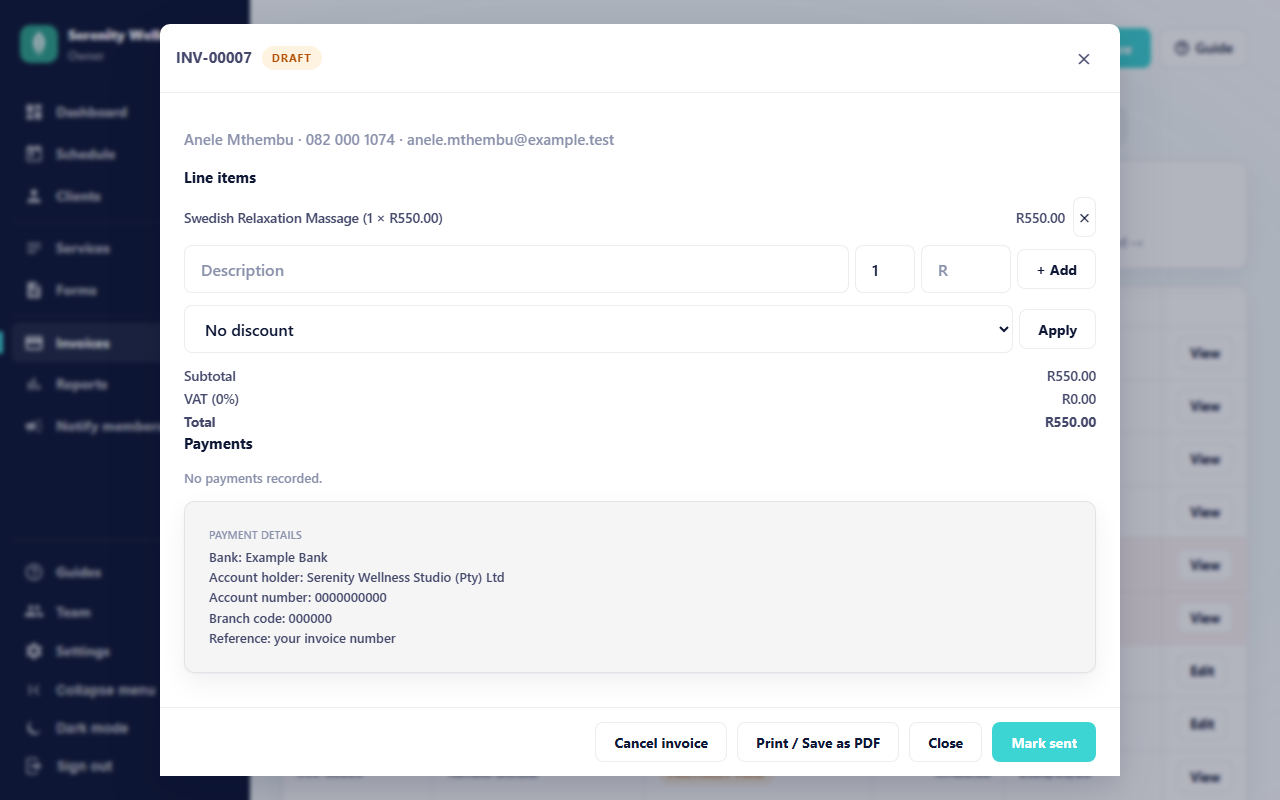
Steps
- Open Invoices and click “Edit” on a draft invoice.
- Under “Line items”, type a Description.
- Set the quantity (the small box) and the price in Rand (the box marked R).
- Click “+ Add”. The line appears in the list.
- To remove a line, click the ✕ next to it.
- To discount, pick “% off” or “R off” from the dropdown, type the value, then click “Apply”.
- Check Subtotal, Discount, VAT and Total at the bottom.
How the total is worked out
Subtotal is every line added up. The discount comes off, then VAT is added if your VAT percentage is above 0.
- Choose “No discount” and click “Apply” to remove a discount.
- You set the VAT percentage under Settings, Invoicing. It is 0 by default.
- If you tick “VAT registered” in Settings, the invoice heading reads TAX INVOICE and shows your VAT number.