The Dashboard explained
What each tile, list and button on your home screen means.
The Dashboard is the first thing you see after signing in. It answers "what do I need to do today?".
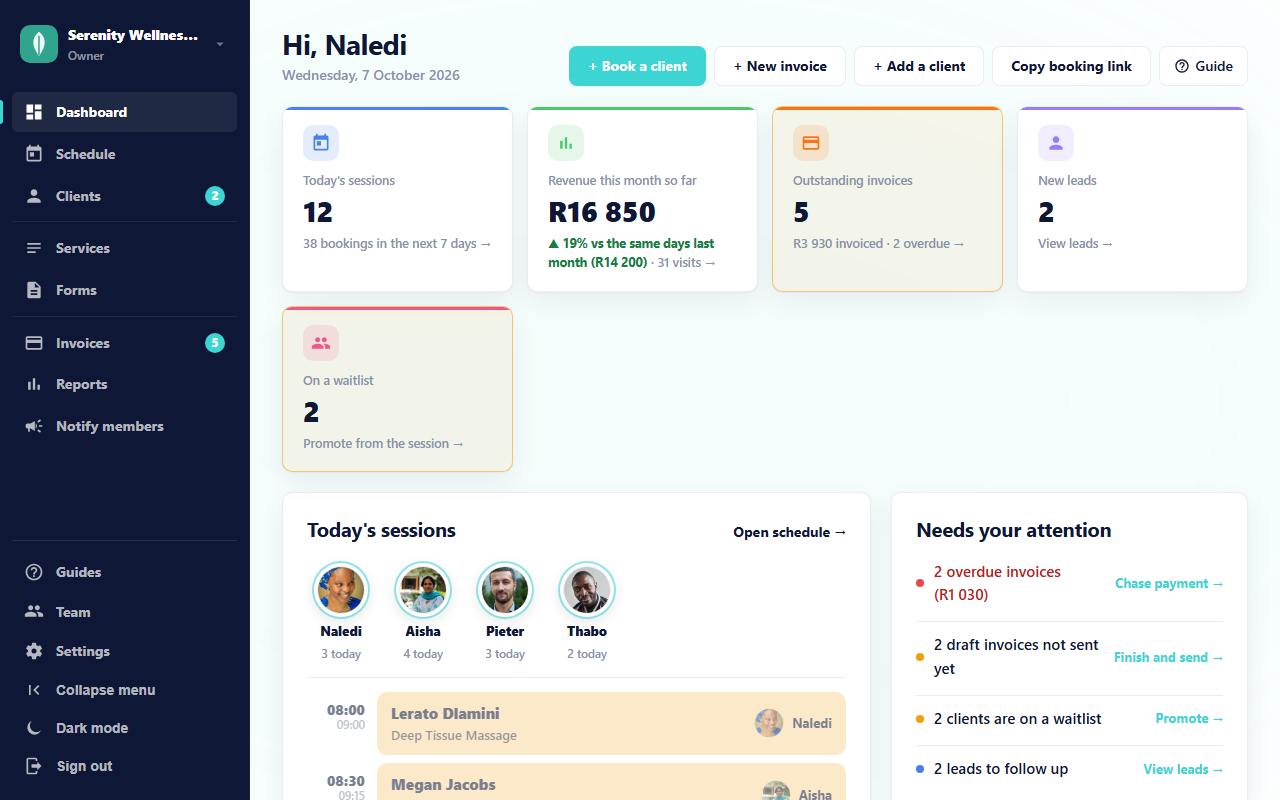
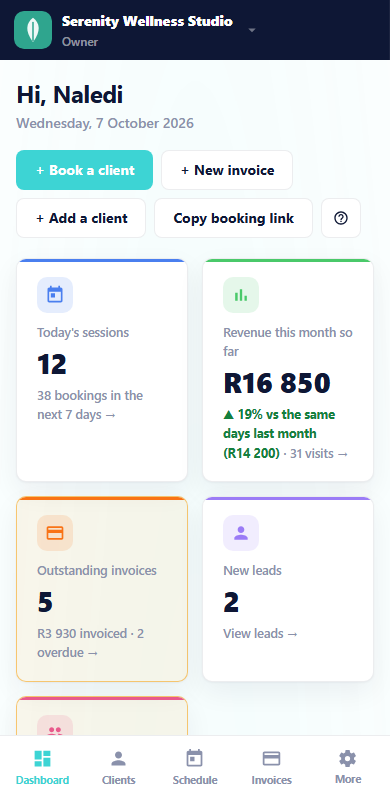
Quick actions (top right)
- + Book a client opens the booking form on the Schedule.
- + New invoice and + Add a client take you to Invoices and Clients (invoice access is only shown if you have it).
- Copy booking link copies your public page link. It appears once your page is public.
Get set up
A checklist for new businesses: add your first service, add your business name and logo, and turn on your public booking page. It disappears when all three are done.
The tiles
- Today's sessions: how many sessions you have today, plus how many bookings are coming in the next 7 days.
- Revenue this month so far: compared with the same days of last month. It only counts invoices, so it is empty until you invoice. Shown only if you can see invoices.
- Outstanding invoices: invoices that are sent, part-paid or overdue, and the total owed.
- New leads: clients marked as leads, to follow up.
- On a waitlist: how many clients are waiting for a place in the next 60 days.
Today's sessions
One row per booked client, in time order. Past ones are faded and the next one says "next up". If you have staff, a strip shows each person with how many clients they have today, or "Free".
Coming up this week
The next 7 days of sessions that have at least one booking, with how full each one is (for example 2/4).
Needs your attention
A short list that can include overdue invoices, draft invoices not sent yet, clients on a waitlist, new leads, and your free trial ending. Tap a line to go straight there.
Waiting for a spot
Sessions that have clients on the waitlist. Open the session on the Schedule to promote them if a place has opened up.