Cancellations, changes and your cancellation policy
Decide how late clients may cancel or move, and show your policy before they confirm.
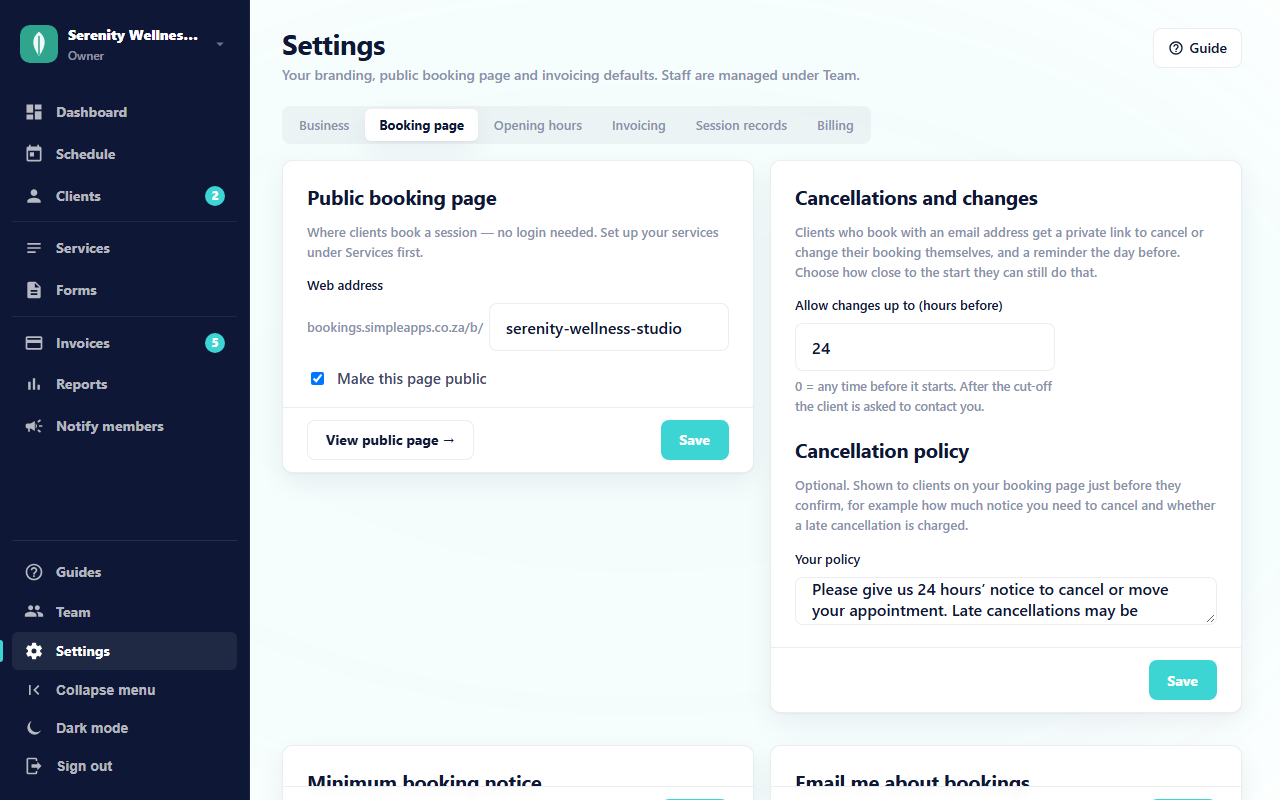
Steps
- Open Settings and click the “Booking page” tab.
- Under “Cancellations and changes”, set “Allow changes up to (hours before)”. 0 means any time.
- Under “Cancellation policy”, write your policy in “Your policy”.
- Click “Save”.
What clients experience
- Clients who gave an email get a private link to cancel or change their booking, plus a reminder the day before.
- After the cut-off, their page says to contact you directly.
- Your policy shows on the booking page just before they confirm.
- Charging for late cancellations is up to you. The system does not take payments or deposits.