What your clients see: booking page and manage link
How clients book, and how they cancel or reschedule with their private link.
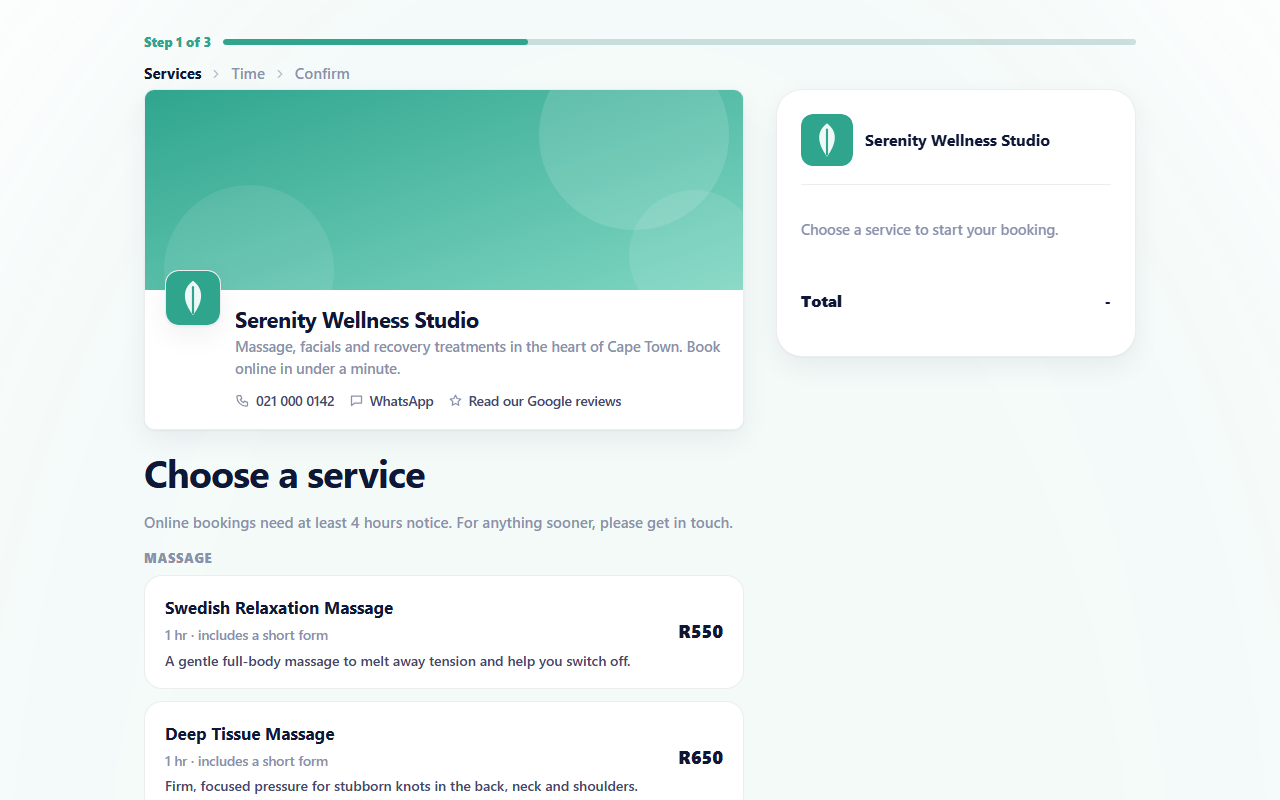
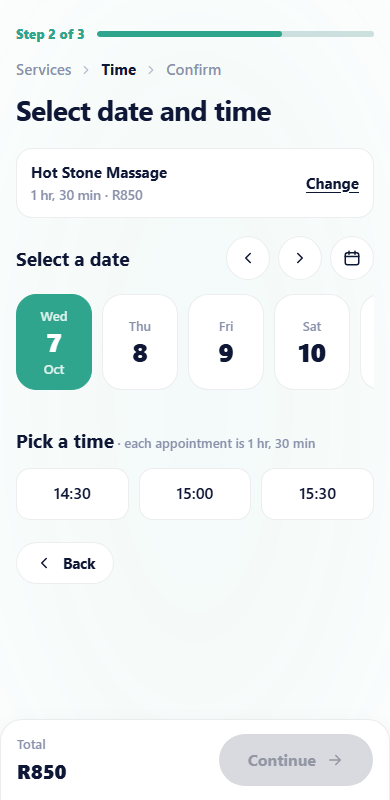
The booking page
- Step 1, Services: they choose what they want.
- Step 2, Time: they pick a date and a time. A full time can be joined as a waitlist.
- Step 3, Confirm: they type name and phone, and an optional email and notes.
- They can tick “Remember my details on this device”.
- If you have WhatsApp on, they can tick to get WhatsApp updates.
- They see your cancellation policy before they confirm.
- The confirmation screen has Add to calendar and Download .ics buttons.
The manage link
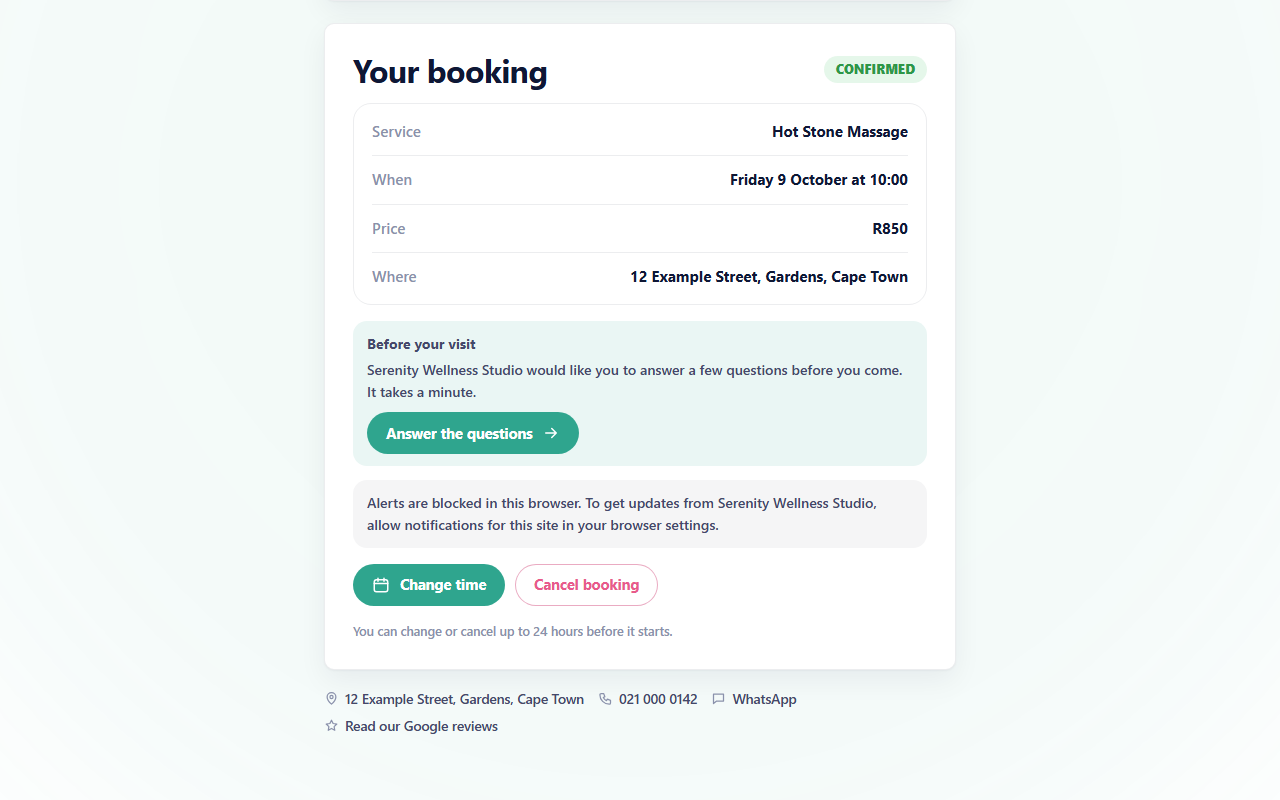
Clients who gave an email get a private link to their booking. It opens “Your booking”, with a status of Confirmed or Waitlist.
- “Change time” moves the booking to another time.
- “Cancel booking” cancels it (or “Leave waitlist”), after a “Yes, cancel it” confirmation.
- They can answer pre-visit questions if you set up a form, and turn alerts and WhatsApp updates on or off.
- After your cut-off time they are asked to contact you instead.
- Manage links stop working 60 days after the visit.
Related guides
How to choose your web address and switch your booking page onPick your booking page address and make it public so clients can book.Cancellations, changes and your cancellation policyDecide how late clients may cancel or move, and show your policy before they confirm.A client cannot book, or a time is not offeredWhy a time may be missing: hours, notice, a full session or a blocked time.