How to attach a form to a service
Have clients complete your form when they book, and choose whether it is required.
Use the exact form you built under Forms. The form should be published first.
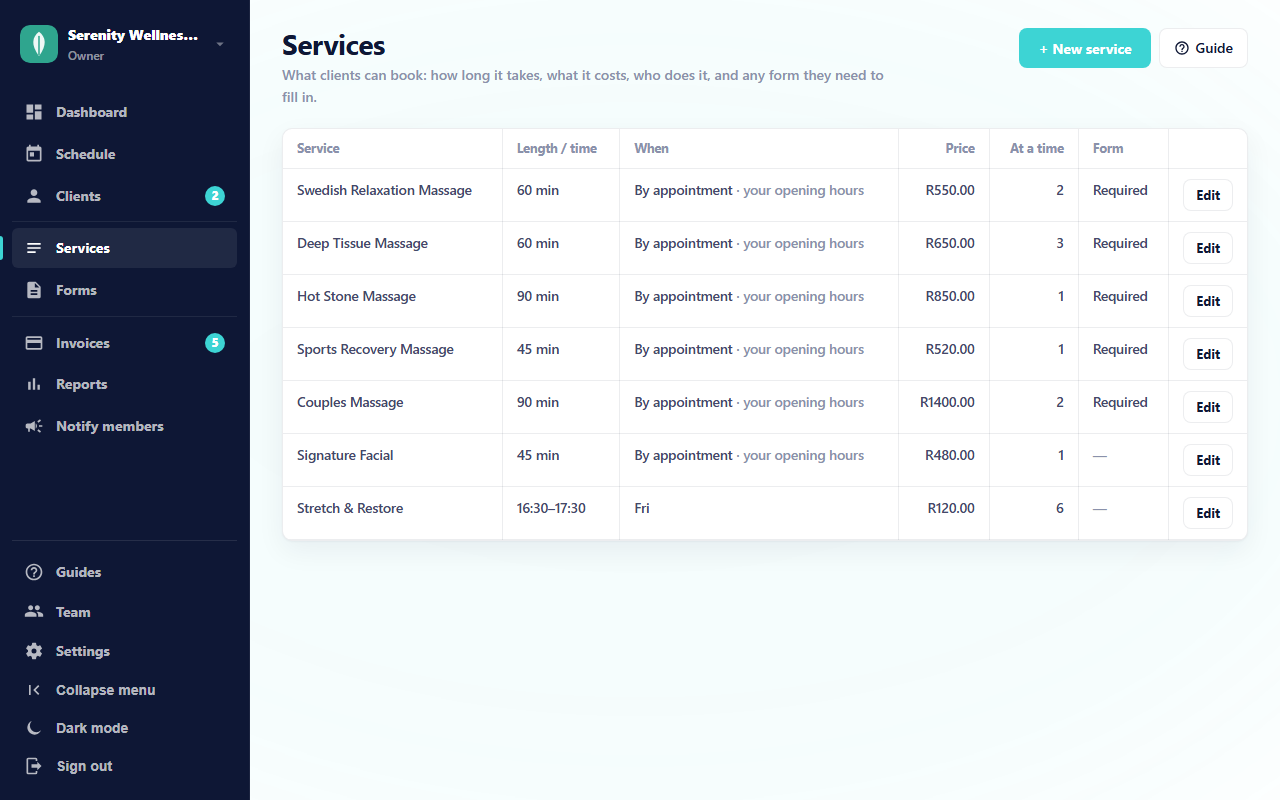
Steps
- Open Services and edit the service (or add a new one).
- Under Required form (optional), choose your form.
- Tick “Client must complete this form before their booking is confirmed” if it is compulsory. Leave it unticked to make it optional.
- Save the service.
What the client sees
After they book, a confirmed client is taken to the form: “One more step: please complete a short form before your appointment” for a required form, or an optional one they can Skip for now and complete at the appointment. The answers are filed against their visit and under Forms on file on their profile.