How to sign in, reset your password and sign out everywhere
Sign in, recover a forgotten password, and end all your sessions.
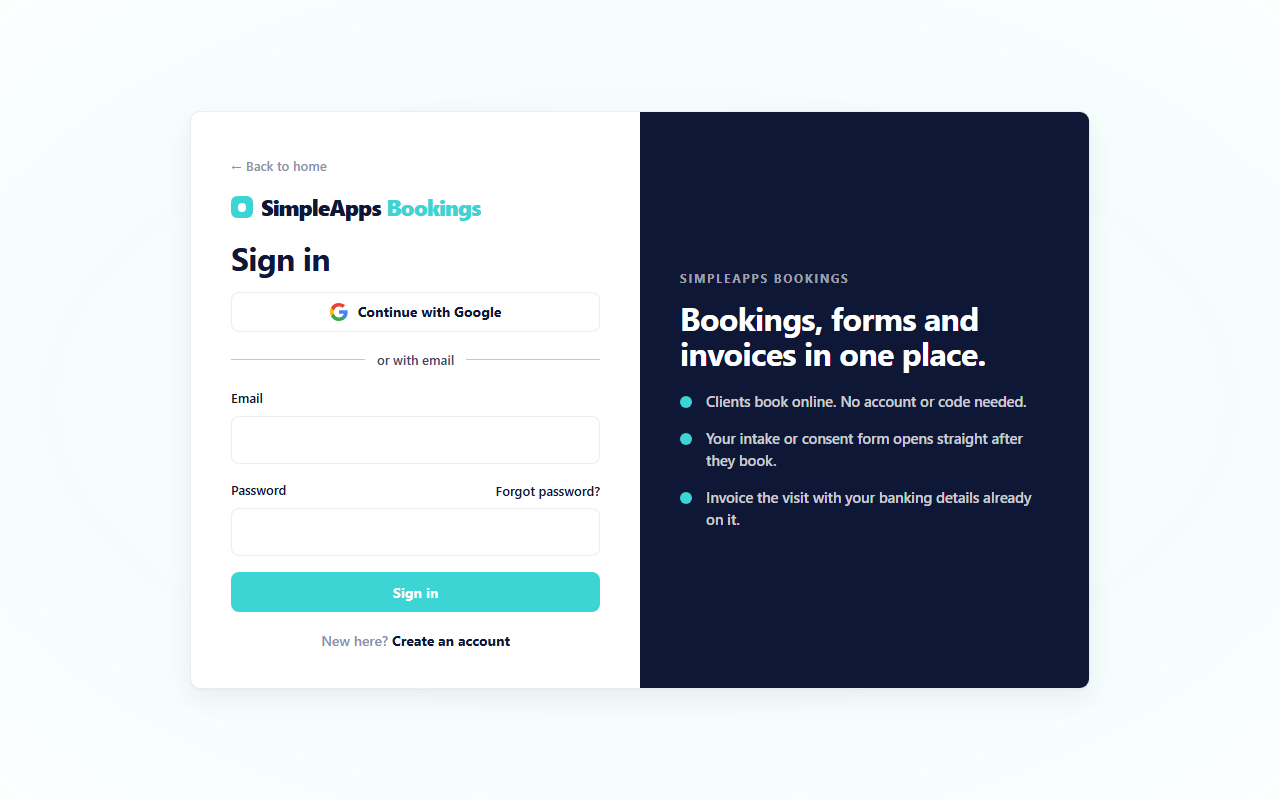
Steps
- Open the sign-in page.
- Type your email and password, then click “Sign in”. Or use “Continue with Google”.
Forgot your password
- Click “Forgot password?” beside the password box.
- Type your email and click “Email me a reset link”.
- Open the email and click the link. It works once and expires after 1 hour.
- Type a new password twice (at least 8 characters) and click “Update password”.
- You are signed out everywhere. Click “Sign in” and use the new password.
Too many attempts
After several wrong tries you are locked out for 15 minutes. Wait, or reset your password.
Signing out
- Use “Sign out” in the menu to leave this device.
- To end every session, open Settings (Business tab), find “Your profile” and click “Sign out on all devices”. Do this if a phone or laptop is lost.