How to install the app on your iPhone or Android phone
Add SimpleApps Bookings to your home screen so it opens like an app.
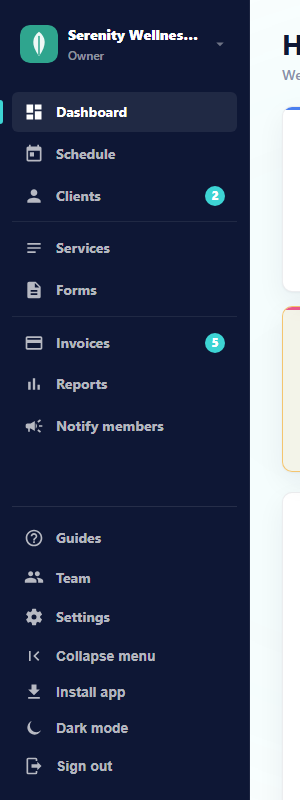
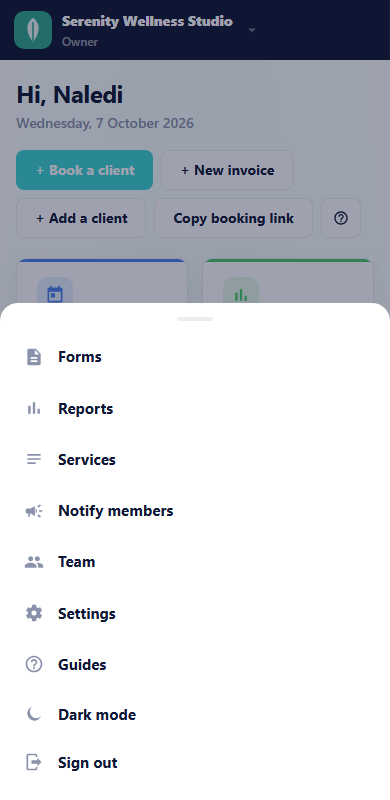
Android (Chrome)
- Open the app in Chrome and sign in.
- Tap “Install app” in the menu, or the install option Chrome offers.
- Confirm. The icon appears on your home screen.
iPhone and iPad (Safari)
- Open the app in Safari. Other iPhone browsers cannot install it.
- Tap “Install app”. It shows the two steps.
- Tap the Share button at the bottom of Safari.
- Choose “Add to Home Screen”.
Good to know
- The button disappears once the app is installed, and when your browser cannot install.
- An update downloads by itself. When ready, a banner says “A new version is ready.” Tap “Refresh”.
- In the menu, “Dark mode” and “Light mode” switch the look. On a phone it is under “More”.
- Your clients can do the same with your own booking page. It installs as your business, using your name and logo.
Related guides
Push notifications on a phoneWhat phone notifications there are, who they are for, and how to get them to arrive.What does “A new version is ready” mean?A newer version of the app has been downloaded. Tap Refresh when it suits you.What your clients see: booking page and manage linkHow clients book, and how they cancel or reschedule with their private link.