How to sign up and confirm your email
Create your account, accept the terms and confirm your email address.
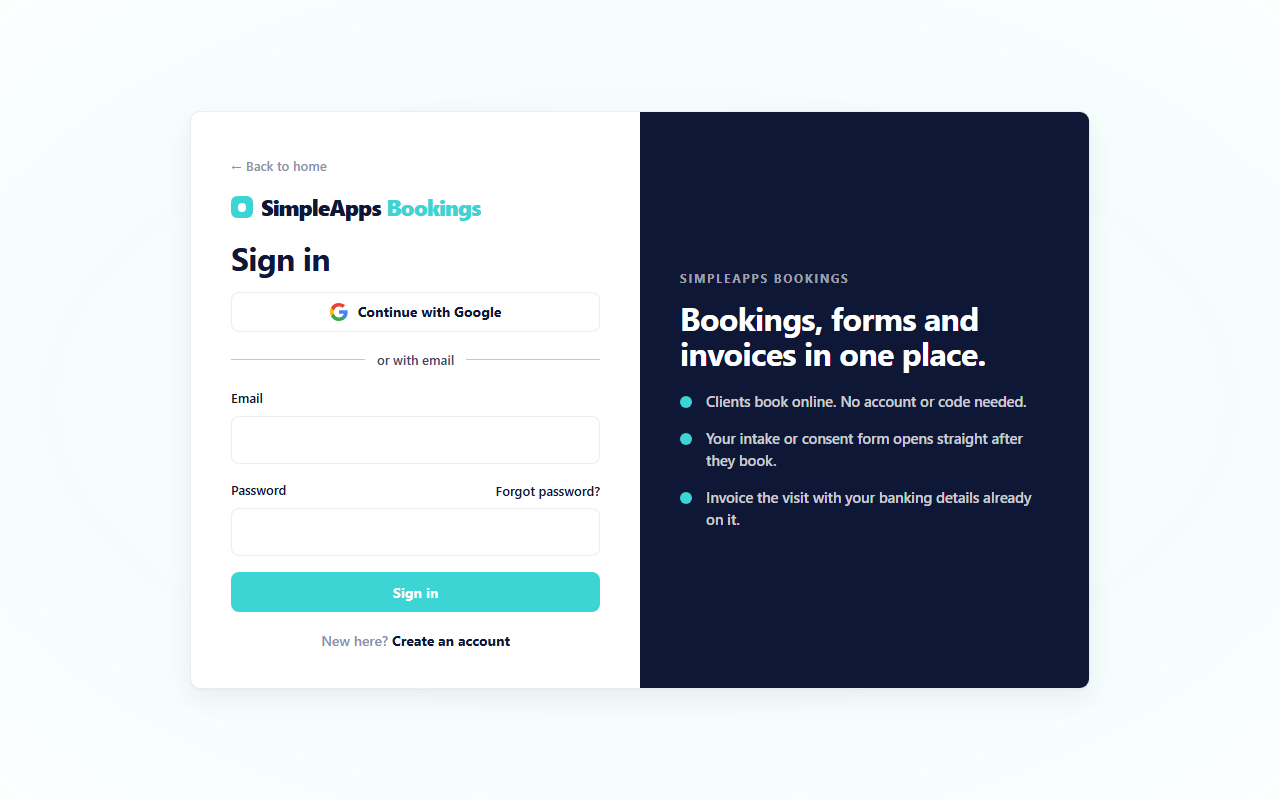
Steps
- Open the sign-in page and click “Create an account”. Or use “Continue with Google”.
- Type your Email, a password of at least 8 characters, and “Your name”.
- Click “Create account”.
- Read the terms on the “Before you start” screen, tick the box and click “Accept & continue”.
- Open the confirmation email and click the link. It says “Email confirmed”.
Why confirm your email
You need it to turn on your public booking page. Until you confirm, a yellow banner shows at the top with a “Resend link” button. Google sign-ins are already confirmed.
Link problems
Confirmation links work once and expire after 7 days. If it says “This link has expired”, sign in and use “Resend link” in the banner.
Related guides
How to sign in, reset your password and sign out everywhereSign in, recover a forgotten password, and end all your sessions.My booking page will not go liveMost often your email is not confirmed yet, or the address is taken.I am stuck on the terms screenThe “Before you start” screen must be accepted once before you can use the app.