How to send or schedule a promo notification
Write a short message with an optional picture and link, then send it now or later.
Steps
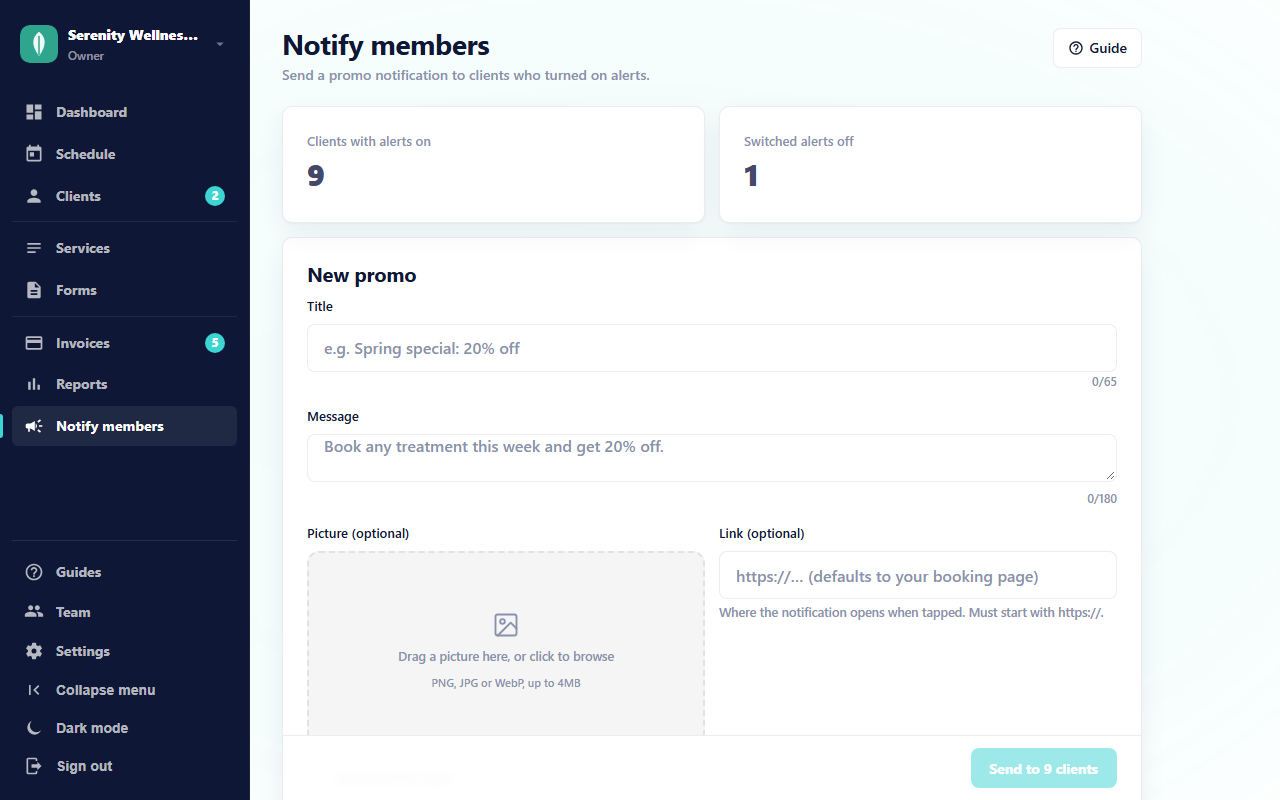
- Open “Notify members” from the menu.
- Check “Clients with alerts on”. That is how many people will get it.
- Under “New promo”, type a Title (up to 65 letters).
- Type your Message (up to 180 letters).
- Optionally add a Picture, and a Link that opens when tapped. The link must start with https://. If you leave it empty it opens your booking page.
- Check the Preview that appears.
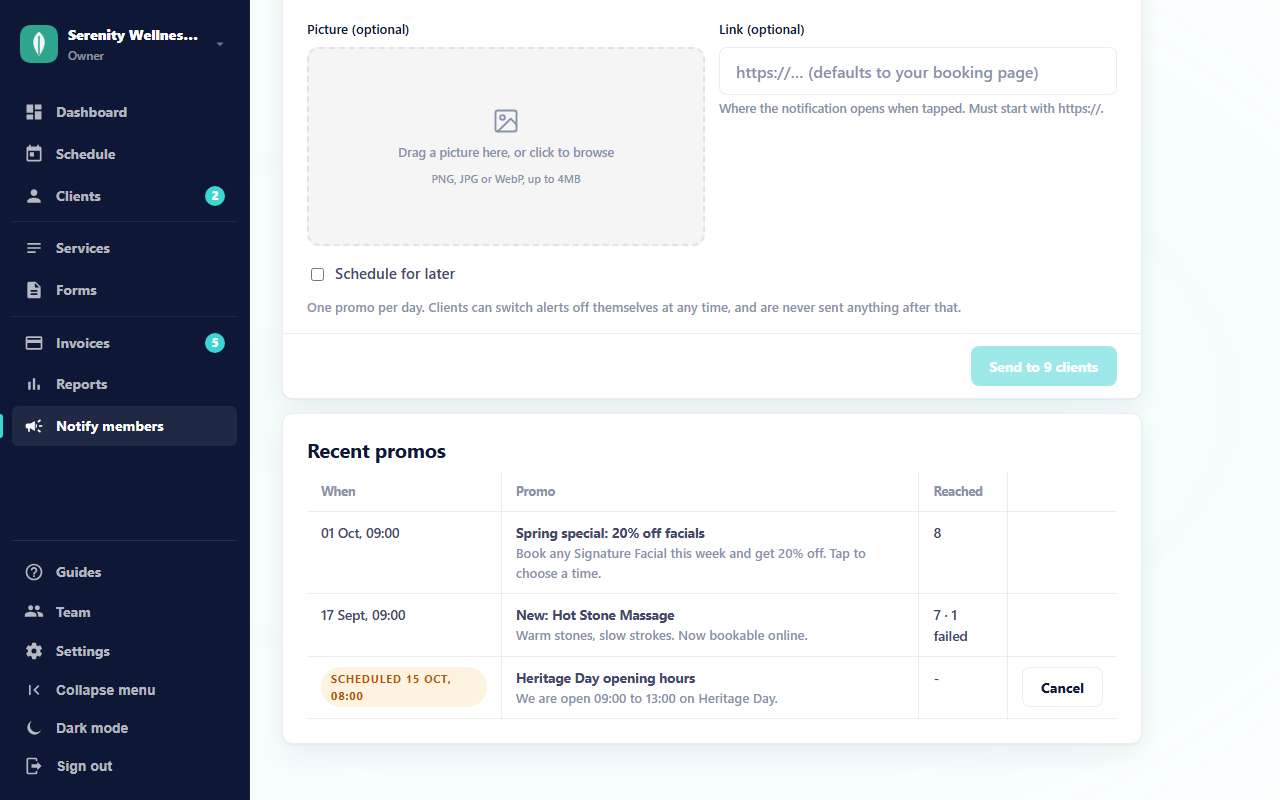
- To send later, tick “Schedule for later” and choose the time (South African time).
- Click “Send to N clients”, or “Schedule promo”.
Rules
- One promo per day. After you use today’s, you can only schedule one for another day.
- A scheduled promo can be cancelled from “Recent promos” with the Cancel button, until it goes out.
- The “Recent promos” list shows when it went and how many it reached, and how many failed.
- If nobody has alerts on yet, it saves but nothing is sent, and you are told.